

How to take meeting notes without a bot joining the call
You can get full meeting notes without adding a note-taking bot to the call. This guide shows three ways to do it, when each one fits, and how to get clear audio.
Updated October 2026
You have three options that add no bot to the call. Use the meeting platform's own recording if the host allows it. Put a phone next to the laptop speaker and record the room. Or write notes by hand with a template. In every case, tell the people in the meeting before you record.
The method that works with any tool
A bot is only one way to capture a call. The steps below work on Zoom, Microsoft Teams, Google Meet, Webex, a phone call or a meeting in a room. They need no extra guest in the call.
- 1Pick your capture method before the meeting. Choose one of the three options in this guide. Deciding in the first minute of the call is too late.
- 2Tell people. Say at the start that you are recording or taking notes, and why. Wait for a yes.
- 3Capture the meeting. Record it or write as you go. Mark the moments that matter, such as a decision or a date.
- 4Write the notes the same day. Keep four parts: what was decided, who does what, by when, and open questions.
- 5Send the notes to everyone who was there. Ask them to correct anything that is wrong. A follow-up email is enough.
Noter AI records, transcribes and summarizes your meetings on iPhone, iPad & Android, in 60+ languages.
Option 1: use the meeting platform's own recording
Zoom, Microsoft Teams, Google Meet and Webex each have a built-in recording feature. No outside tool joins the call. Whether you can use it depends on the host's account and settings, so check before the meeting.
- 1If you are the host, look for the recording control in the meeting toolbar before the call starts. If it is missing, your account or your organisation's admin may have turned it off.
- 2If you are a guest, ask the host to record, or ask them to give you permission to record.
- 3Start the recording once everyone has joined. These platforms show participants a notice that recording is on.
- 4After the call, the recording is saved to the host's computer or cloud account. Ask the host for the file or a link.
- 5Some accounts also produce a transcript. If yours does, use it as the base for your notes.
Option 2: put a phone next to the laptop speaker
This option needs no permission from the platform and adds nothing to the call. The laptop plays the call out loud, and a phone on the desk records the room. It captures your voice directly and the other voices through the speaker.
- 1Unplug your headphones. The phone can only record what plays out loud.
- 2Put the phone on the desk, about a hand's length from the laptop speaker.
- 3Open a voice recorder app or a note-taking app on the phone and start recording.
- 4Tell the people on the call that you are recording, then run the meeting as normal.
- 5Stop the recording at the end. Listen to the first minute to check that the voices are clear.
Option 3: write notes by hand with a template
Written notes need no recording at all. This is the right choice when someone says no to recording, or when the topic is sensitive. A template keeps you from writing down every word.
- 1Before the call, write the date, the people and the agenda at the top of the page. You can start from a meeting minutes template.
- 2Under each agenda item, leave space for three things: decisions, tasks and open questions.
- 3During the call, write only those three things. Skip the discussion that led to them.
- 4For every task, write a name and a date next to it.
- 5In the last two minutes, read the decisions and tasks out loud and ask if anything is missing.
Why people avoid a bot in the call
- It is a visible extra guest. A bot shows up in the participant list. Some people stop mid-sentence to ask what it is.
- Host settings can block it. A waiting room, a rule that only signed-in users may join, or guest access turned off by the organisation can keep a bot out. Then you have no notes.
- Clients may not be comfortable. In a first call or a pricing talk, an unknown participant can make the other side more careful with their words.
- It is not your meeting. As a guest, you may feel it is not your place to bring one in.
The three options compared
Each option trades effort for control. The table shows what you need and what you get.
| Option | What you need | Who can see it | What you get | Main limit |
|---|---|---|---|---|
| Platform recording | Host permission and an account that allows recording | Everyone sees the recording notice | Audio or video file, sometimes a transcript | The host controls the file |
| Phone next to the speaker | A phone and a quiet room | Nobody, unless you say so. You must say so. | An audio file you own | Audio quality depends on the room |
| Phone with a note-taking app | A phone with the app installed | Nobody, unless you say so. You must say so. | Transcript, summary and action items | Same room limits as above |
| Handwritten or typed notes | A template and attention | People may see you writing | Decisions and tasks only | You miss details while you write |
Which option for which situation
The right choice depends on where the voices come from. For a look at apps that record without a bot, see our roundup of bot-free transcription apps.
| Situation | Best option | Why | Watch out for |
|---|---|---|---|
| Everyone in one room | Phone on the table | The microphone hears every voice directly | Put the phone in the middle, away from fans |
| Video call on a laptop, you are the host | Platform recording | Cleanest audio and no extra device | Recording may be turned off on your account |
| Video call on a laptop, you are a guest | Phone next to the speaker | You do not need the host to change settings | Headphones stop the phone from hearing the call |
| Phone call | Call on speaker, second device records | On iPhone, apps get no access to call audio | Speaker volume that is too low or too high |
| Hybrid: some in the room, some remote | Phone near the room speaker | One recording holds both groups | People far from the phone sound faint |
| Someone refuses recording | Handwritten notes | No audio is stored | Read the tasks back before you end |
Audio tips for recording a laptop call with a phone
Sound that travels from a small speaker to a phone microphone is weaker than sound captured inside the call. These habits close most of the gap.
- Set the laptop volume to about three quarters. Full volume can distort on small speakers.
- Keep the phone off the laptop body. Typing and fan noise travel through the case. Put the phone on a notebook or a cloth next to it.
- Point the bottom of the phone at the speaker. Most phones have their main microphone on the bottom edge.
- Close the door and the window. A steady background noise hides quiet voices.
- Turn on Do Not Disturb. A ringtone in the middle of the recording covers what was said.
- Use an external speaker if you have one. A louder, clearer speaker gives the phone more to work with.
- Do a ten-second test. Record, play it back, then move the phone if the far side sounds thin.
Common problems and fixes
| Problem | Likely cause | Fix |
|---|---|---|
| Only your own voice is on the recording | You wore headphones | Play the call through the laptop speaker |
| The other side sounds far away | Phone is too far from the speaker, or volume is low | Move the phone closer and raise the volume one step |
| Loud tapping in the recording | Phone is resting on the laptop or near the keyboard | Move it to a soft surface beside the laptop |
| The platform's record button is missing | Recording is turned off for your account or by an admin | Ask the host or admin, or use the phone method |
| The recording stopped halfway | A phone call came in, or the app was closed | Turn on Do Not Disturb and use an app that records in the background |
| Your written notes miss who agreed to what | You wrote the discussion and skipped the outcome | Use a template with a tasks column and read it back at the end |
How Noter AI does it
Noter AI is an app for iPhone, iPad and Android. Its in-person recording uses the device microphone, so nothing joins the call. It hears the room, and that includes a call played on a speaker. Get it for iPhone and iPad or Android.
- 1Place the phone next to the laptop speaker, or in the middle of the table for a meeting in a room.
- 2Open Noter AI and start a recording with one tap. On iPhone you can also start from Control Center or with a Siri shortcut.
- 3Lock the screen if you like. Recording continues with the screen locked and in the background, for up to three hours per recording.
- 4Stop the recording when the meeting ends. Processing takes about 2 minutes for a 1-hour recording.
- 5Open the note. It has a transcript with speaker labels and timestamps, a summary, a detailed analysis and action items with assignees.
- 6Pick an output style if you need a different format, such as minutes of meeting or an email. Export as PDF, Word or plain text.
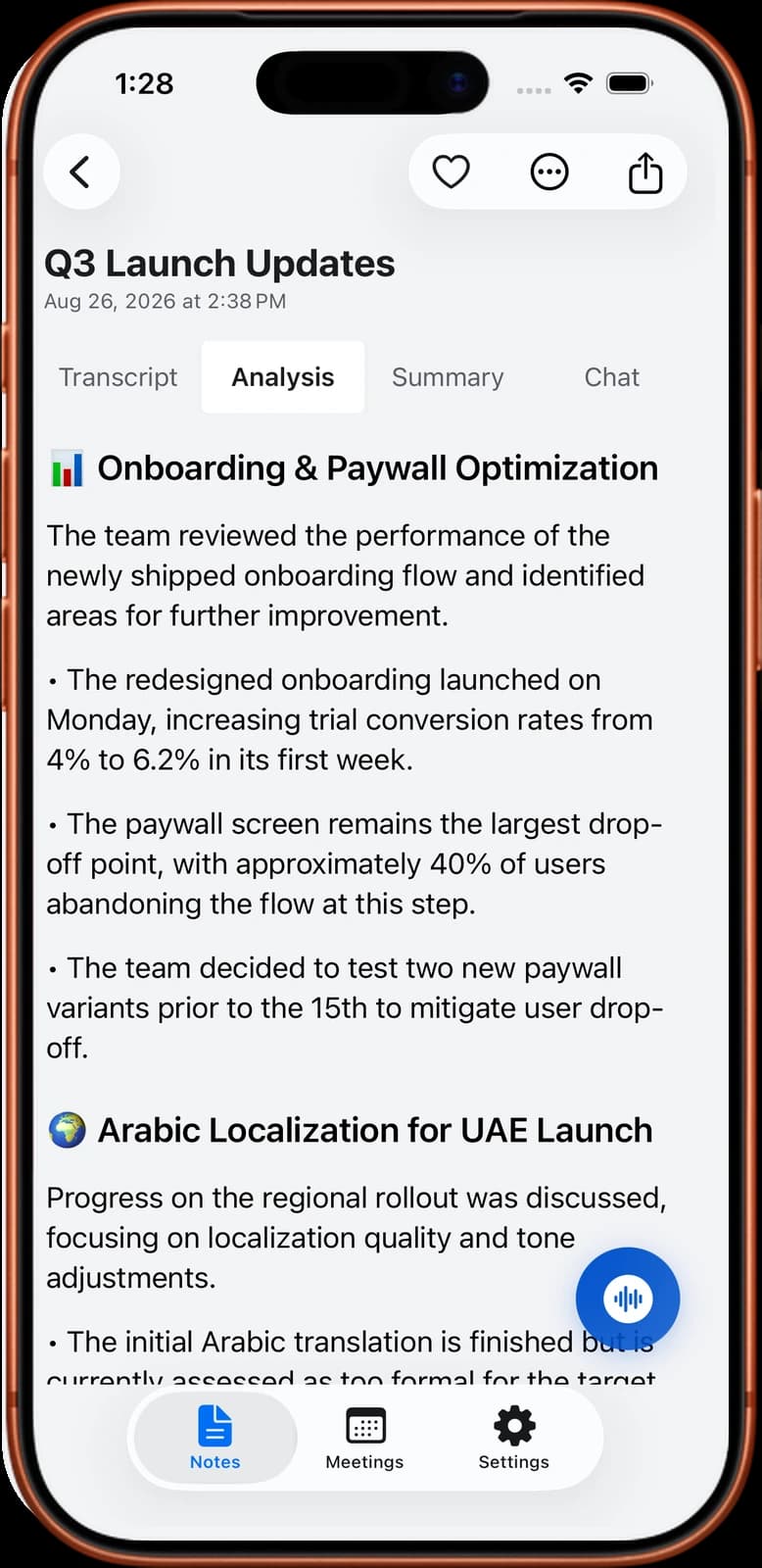
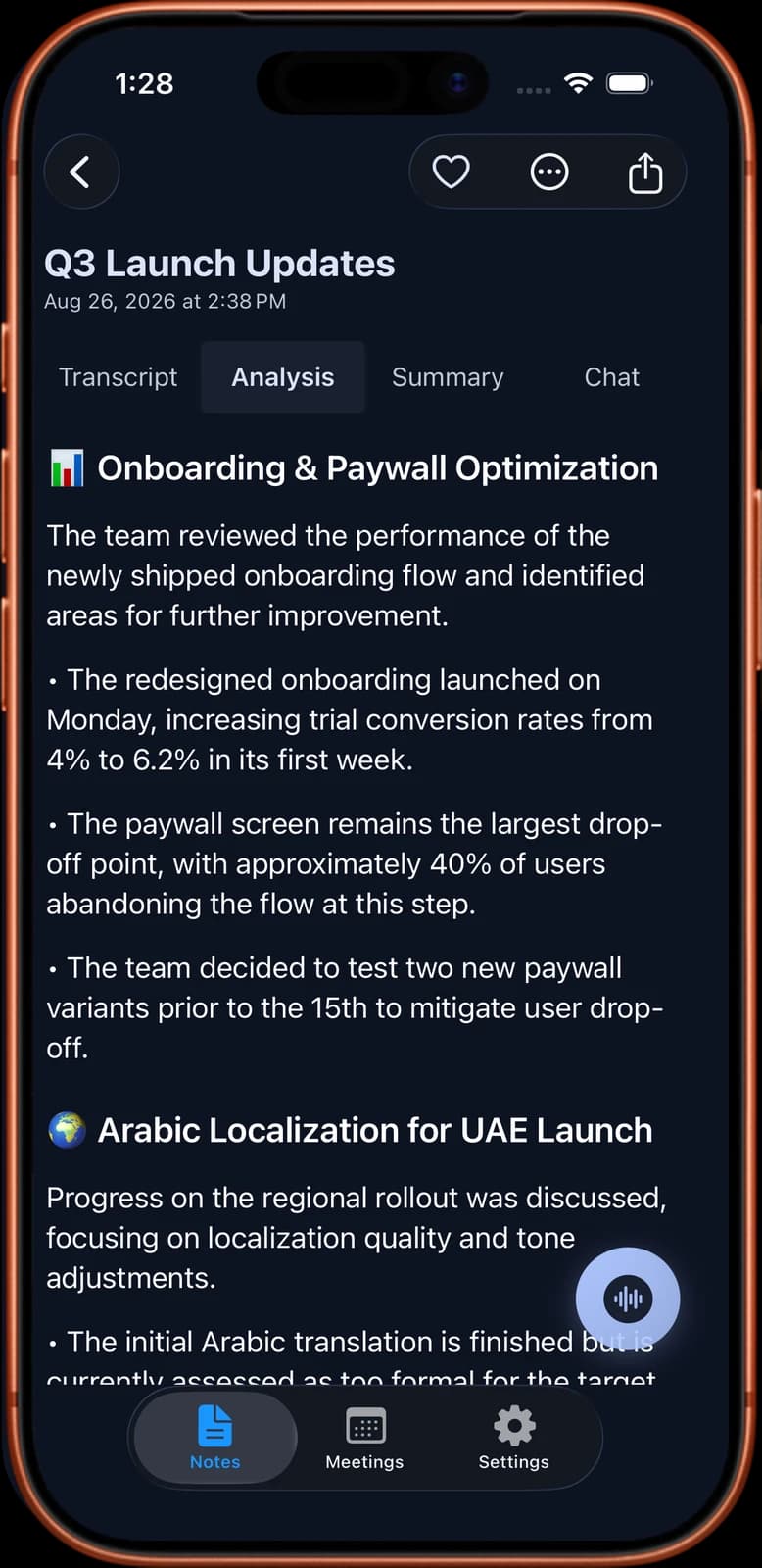
Sample output: notes from a client call
The card below is an invented example. It shows the kind of short notes you can expect from a 25-minute client call that was played on a laptop speaker and recorded with a phone.
People: Sara (account lead), Omar (client, marketing), Lina (designer)
Length: 25 minutes
Summary: Omar approved the new homepage layout. The pricing page needs one more round. Launch moves one week later so the client's legal team can review the copy.
Decision: Homepage design is final. No more changes.
Decision: New launch date is 9 November.
Decision: The pricing page will show yearly prices first.
Action: Lina sends the revised pricing page by Thursday.
Action: Omar sends the legal team's comments by 30 October.
Action: Sara updates the project plan and shares it on Monday.
Open question: Does the client want an Arabic version at launch or later?
Next call: 2 November, 30 minutes.
Consent, and the honest limits
No bot in the call does not mean nobody needs to know. A phone on your desk is invisible to the people on the other side, so the duty to tell them is yours. Say it at the start and stop if someone objects. Laws differ by country and sometimes by state. See meeting recording laws by country before you record people in another place.
Noter AI has limits for this job, and you should know them before you rely on it.
- There is no desktop or web app. Noter AI cannot capture the sound inside your laptop. On a laptop call, the phone records the room.
- Room audio is weaker than call audio. Voices that come through a small speaker can sound alike. Check the speaker labels in the transcript and rename them where needed.
- Headphones do not work with this method. The call must play out loud.
- Phone calls need a speaker too. iOS gives apps no access to call audio. See how to record a phone call on iPhone.
- The bot is optional and separate. Noter AI also has a meeting bot that joins Zoom, Microsoft Teams, Google Meet and Webex as a visible guest. You only send it when you choose to.
Frequently asked questions
How can I get a meeting recording without a bot in the meeting?
Ask the host to use the platform's built-in recording and share the file with you. If that is not possible, play the call on your laptop speaker and record the room with a phone. Both ways add no participant to the call.
Can I capture notes on my laptop without installing anything in the call?
Yes. The platform's own recording is already part of Zoom, Microsoft Teams, Google Meet and Webex, so there is nothing to add. A phone on the desk is a second way, and it needs nothing on the laptop at all. Typed notes in a template are the third.
Does Noter AI have a Mac or Windows app that records calls?
No. Noter AI runs on iPhone, iPad and Android only. For a call on a laptop, you place the phone near the speaker and record the room, or you choose to send the bot.
Will the other people know I am recording with my phone?
They will not see anything on their screen, which is why you have to tell them yourself. Say it before you start and give people a chance to say no. In many places this is a legal requirement.
Is a phone recording good enough for a transcript?
In a quiet room with the phone close to the speaker, it usually is. Quality drops with background noise, low volume or people who talk over each other. Do a short test before an important call.
What if the host has turned off recording?
Ask why first. The host may have a reason, such as a sensitive topic or a company rule. If recording is not welcome, take written notes with a template and send them around for corrections.
How do I take notes in a hybrid meeting without a bot?
Put one phone on the table near the room speaker, so it hears both the people in the room and the remote voices. Ask people in the room to speak toward the middle of the table. Check the recording in the first break.
When is a bot the better choice?
When you cannot sit near a speaker, for example on a train with headphones, or when you cannot attend the whole call. A bot records the call audio directly, so it does not depend on the room. It joins as a visible guest, and the host may need to admit it.
Let Noter AI take your meeting notes
Record, transcribe, and summarize meetings on iPhone, iPad & Android, or send a bot to Zoom, Teams, Meet, or Webex. In 60+ languages.

On your computer? Scan with your phone to get the app.
