

The Noter AI meeting bot
The Noter AI meeting bot joins your Zoom, Microsoft Teams, Google Meet or Webex call as a guest and records it for you. When the call ends, a note appears in the app with the transcript, a summary and the action items. You send the bot from your phone or tablet, and nothing gets installed inside the meeting platform.
Updated October 2026
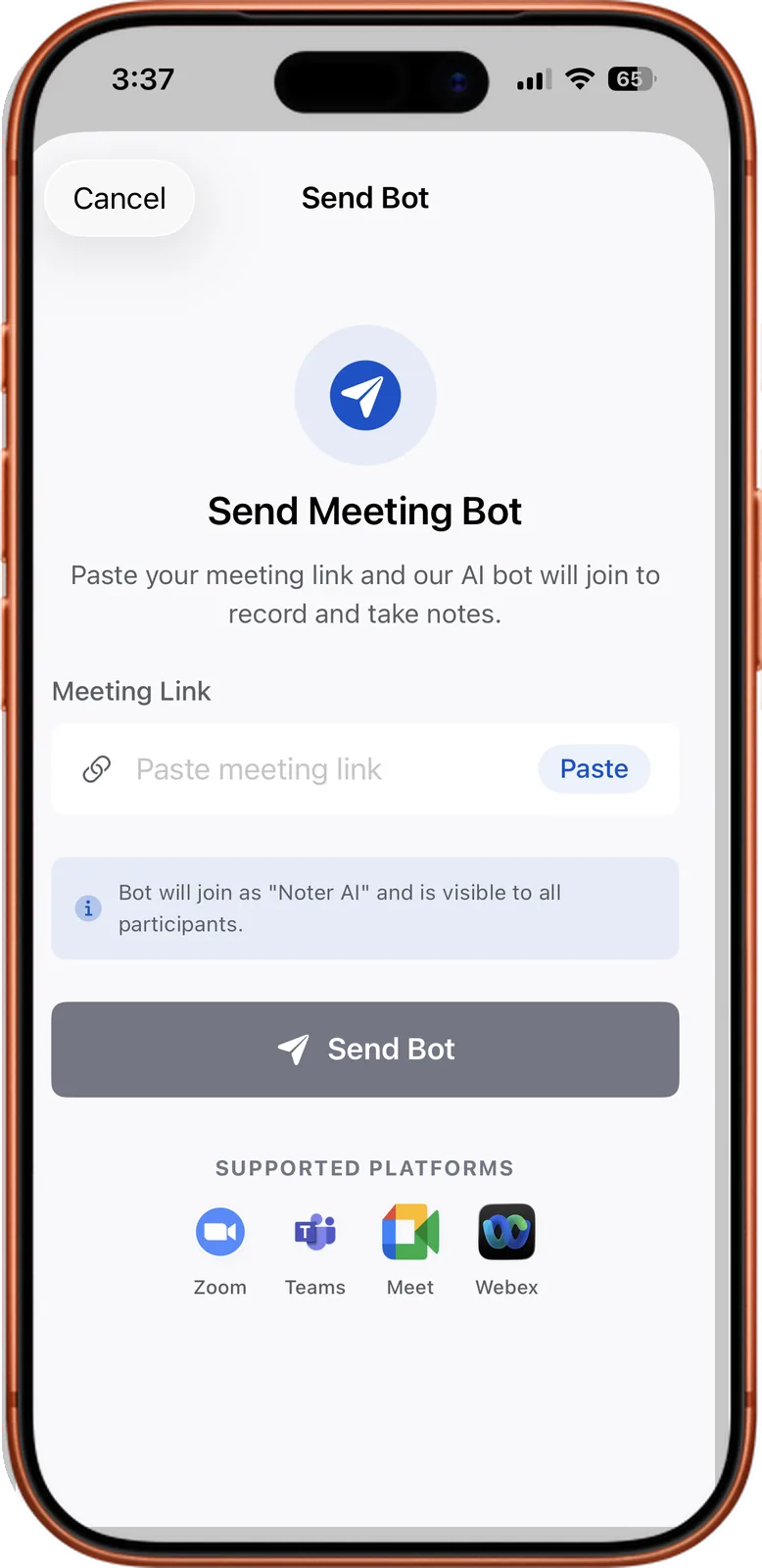
From a meeting link to a note
How it works
- 1Give the bot a meeting. Paste the meeting link into Noter AI, or tap Join on a meeting from your synced Google or Outlook calendar.
- 2The bot joins as a guest. It shows up in the participant list where everyone can see it. If the meeting has a waiting room or lobby, the host admits it like any other guest.
- 3Run your meeting as usual. The bot records while you talk. It does not speak and it does not post in the chat.
- 4Open the note. After the call, a note appears in the app. A one-hour recording takes about 2 minutes to process.
Noter AI records, transcribes and summarizes your meetings on iPhone, iPad & Android, in 60+ languages.
What you get
The bot is part of the one Noter AI plan. There is no separate charge for it. See pricing for the current prices.
| Capability | Detail |
|---|---|
| Platforms | Zoom, Microsoft Teams, Google Meet and Webex |
| Ways to send it | Paste the meeting link, or tap Join on a calendar meeting |
| Calendar sync | Google Calendar or Outlook. Upcoming meetings that have a link are listed in the app |
| Setup inside the platform | None. No add-on or plugin, and it works on whatever plan the host has |
| How it appears | A visible guest participant |
| Transcript | Speaker labels and a timestamp on every line, in 60+ languages with automatic detection |
| Note | A summary, a detailed analysis, and action items with assignees |
| Bot status on iPhone | Shown in the Dynamic Island and as a Live Activity |
Sample output
This is an invented example. It shows the kind of note the bot produces for a 25-minute Google Meet call about a Q4 launch.
Summary: The team agreed to move the Q4 launch from 3 November to 10 November because the pricing page is not ready. Sara will own the new timeline. Omar raised a risk about the payment provider review, which can take up to five working days.
| Action item | Assignee | Due |
|---|---|---|
| Send the updated launch timeline to the team | Sara | Wednesday |
| Submit the payment provider review | Omar | Tomorrow |
| Finish the pricing page copy | Lina | Friday |
| Book the next check-in | Sara | This week |
- Below the summary sits the full transcript. Each line has a speaker label and a timestamp.
- Tap any line to play the audio from that moment.
Host settings that block a bot, and how to fix each
The bot is a guest, so the host's rules for guests apply to it. Three settings cause almost every failed join.
| Setting | What happens | Fix |
|---|---|---|
| Waiting room or lobby | The bot waits outside until someone lets it in | The host admits it from the participant list, like any guest. If you are the host, look for it right after you send it |
| Only authenticated users can join | The bot is refused, because it joins as a guest without an account on that platform | Ask the host to allow guests for this meeting. If they cannot, record on the phone |
| Guest access disabled by the organisation | No outside participant can enter, so the bot cannot either | Only the organisation's admin can change this. Record on the phone |
- Tell the host before the call. A bot that appears without warning often gets removed. One line in the invite is enough.
- You are not the host? Ask first. The host decides who is admitted.
- Platform walkthroughs: Zoom, Microsoft Teams, Google Meet and Webex.
When to record on the phone instead
The bot needs a meeting link and a host who lets guests in. When one of those is missing, record the room with the app. It is one tap, it keeps recording with the screen locked, and each recording can run up to three hours.
- The meeting is in a room. There is no link for a bot to join. See in-person recording.
- The organisation blocks guests. Play the call on your laptop speaker and record it with the phone next to it.
- People are not comfortable with a bot in the participant list. Tell them you are recording, then record on the phone.
- It is a phone call. iOS gives apps no access to call audio. Put the call on speaker and record the room.
- The call runs on a platform the bot does not join. It joins Zoom, Microsoft Teams, Google Meet and Webex. For anything else, record the speaker audio on the phone.
Limits and honest notes
- The bot is always visible. It joins as a guest in the participant list. There is no hidden mode.
- It listens only. It does not speak and it does not post in the meeting chat.
- The host has the final say. A host can keep it in the lobby or remove it.
- You send it from the app. Noter AI runs on iPhone, iPad and Android. There is no web app and no desktop app.
- Consent is your job. You are responsible for telling people they are being recorded. Laws differ by country. Start with meeting recording laws by country.
Frequently asked questions
Which meeting platforms does the Noter AI bot join?
Zoom, Microsoft Teams, Google Meet and Webex. You paste the meeting link into the app, or you tap Join on a meeting from your synced Google or Outlook calendar.
Do I need to install anything in Zoom or Teams?
No. Nothing is installed inside Zoom, Teams, Google Meet or Webex. The bot enters through the meeting link as a guest, so it works on whatever plan the host has.
Can other people see the bot in the meeting?
Yes. It joins as a visible guest participant and appears in the participant list. You should still tell people the call is being recorded, because recording laws differ by country.
The bot is stuck in the waiting room. What do I do?
Ask the host to admit it. A waiting room or lobby holds every guest until the host lets them in, and the bot is treated the same way. If you are the host, admit it from the participant list.
Why could the bot not join my meeting?
The usual causes are host settings. The meeting may allow only authenticated users, or the organisation may have guest access turned off. Ask the host to allow guests for that meeting. If that is not possible, record the call on your phone.
Does the bot say anything or write in the chat?
No. The bot does not speak and does not post in the chat. It joins, records, and the note appears in the app afterwards.
Does the bot cost extra?
No. Noter AI has one plan with everything in it: $11.99 per month, $89.99 per year or $5.99 per week in the US. There are no per-seat fees and no AI credits. There is a free plan to try the app and a free trial on every subscription.
How long until the note is ready after the call?
About 2 minutes of processing for a one-hour recording. On iPhone, the Dynamic Island and the Live Activity show the status while you wait.
Let Noter AI take your meeting notes
Record, transcribe, and summarize meetings on iPhone, iPad & Android, or send a bot to Zoom, Teams, Meet, or Webex. In 60+ languages.

On your computer? Scan with your phone to get the app.
