

Noter AI for Microsoft Teams
Noter AI joins a Microsoft Teams meeting as a guest, records it, and puts a note in the app with the transcript, a summary and action items with owners. You start it from your phone with the meeting link. Your organisation does not add anything to Teams.
Updated October 2026
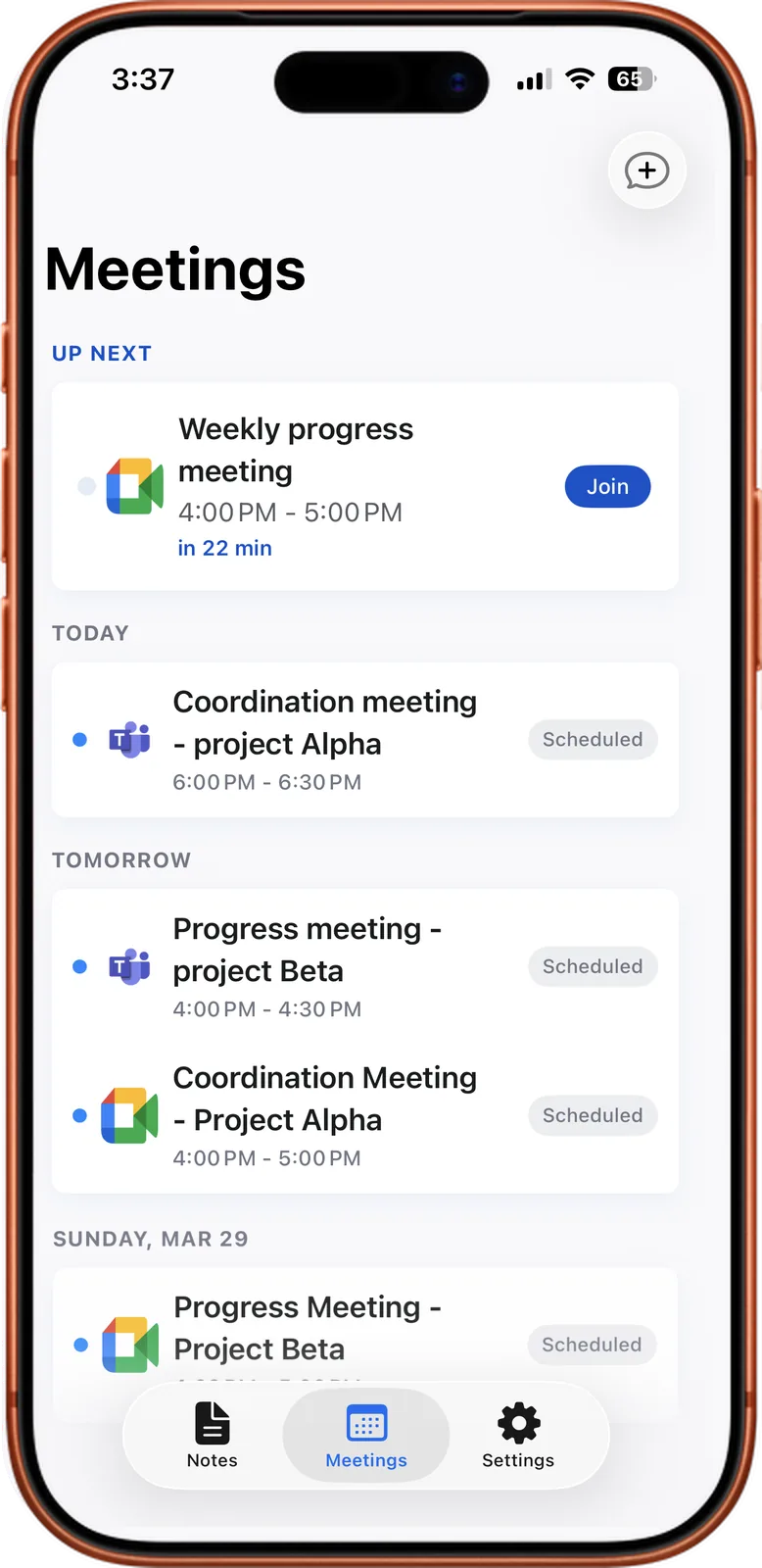
From a Teams meeting to a note
Two ways to capture a Teams meeting
Teams is where most companies hold their internal meetings: the weekly status call, the project review, the department update. Many of these are hybrid, with some people in a meeting room and the others remote. Noter AI covers both halves.
The bot joins. You give Noter AI the Teams meeting link. A bot enters the meeting as a visible guest and records. This is the right choice when you join remotely.
You record in the room. If you sit in the meeting room where Teams is on the big screen, tap record in the app and put the phone on the table. It keeps recording with the screen locked or with the app in the background, for up to three hours per recording. This is also the fallback when your organisation's policy stops guests from joining.
Noter AI records, transcribes and summarizes your meetings on iPhone, iPad & Android, in 60+ languages.
How to send the bot
- 1Connect your calendar, if you want one-tap joins. Teams meetings usually live in Outlook. Connect Outlook or Google Calendar once, and upcoming meetings with a link appear in the app.
- 2Tap Join on the meeting. If the meeting is not in your calendar, copy the Teams link from the invite and paste it in the app.
- 3Wait for the organiser to admit the bot. If the meeting uses a lobby, the bot stays there until someone lets it in.
- 4Carry on with the meeting. The bot records and stays silent.
- 5Read the note. It appears in the app after the meeting. A 1-hour recording is processed in about 2 minutes.
Host settings that can block the bot
In Teams, the organisation's policy matters more than any one meeting. Two things can stop the bot, and one of them is outside the organiser's control.
- The lobby. Teams meetings can hold guests in a lobby. The bot waits there until the organiser or another permitted person admits it. If nobody is watching the lobby, the bot never gets in, so mention it at the start.
- Anonymous or guest joins disabled by the organisation. An IT administrator can stop people outside the organisation from joining meetings at all. When that rule is on, the bot cannot join, and the organiser cannot change it from inside the meeting.
- What to do. For the lobby, admit the bot. For an organisation rule, speak to your IT team about the policy. Until then, record the meeting on your phone from the room. That method does not touch Teams.
What you get
| Output | Detail |
|---|---|
| Transcript | Speaker labels and a timestamp on every line. Tap any line to replay that moment. Speakers can be renamed to real names. |
| Summary and analysis | A short summary and a longer detailed analysis, both written automatically. You can edit the summary. |
| Action items | Listed with the person each one is assigned to. |
| Minutes of meeting | One of six output styles. The same recording can also become a formal report, an email, a to-do list, key bullet points or a format you describe yourself. |
| Translation | The transcript translates into 46 languages and keeps the speaker labels and timestamps. |
| Export | PDF, Word (.docx) or plain text, ready to send to people who missed the meeting. |
Sample output
The example below is made up. It shows what the minutes style could produce for a 30-minute internal Teams meeting about a Q4 launch.
- Meeting: Q4 launch weekly status. Attendees: Sara, Omar, Lina.
- Summary: The landing page is finished. The support guide is one week late because the product screens changed. The team agreed to keep the launch date.
- Decision: Lina's team will publish the guide in two parts, with the first part ready on launch day.
- Action item, Omar: freeze the product screens by Wednesday.
- Action item, Lina: deliver part one of the support guide by 28 October.
- Action item, Sara: update the launch checklist and share it before the next status call.
- Open question: who approves the launch email? Nobody was named.
Limits and honest notes
A few things to know before you rely on it for company meetings.
- Colleagues see the bot. It appears in the Teams participant list as a guest for the whole meeting.
- It is separate from Teams. Nothing is installed in Teams and no admin setup is needed on the Teams side. The note lives in the Noter AI app, and you share it by exporting it.
- No web app and no desktop app. Noter AI runs on iPhone, iPad and Android. You send the bot from the phone while you attend on your computer.
- Each person has their own subscription. There are no per-seat team fees. One plan includes everything, at $11.99 per month or $89.99 per year in the US.
- Telling people is your job. You are responsible for telling attendees that the meeting is recorded, and for following your company's own rules about recording. Read do you have to tell people you are recording a meeting.
Frequently asked questions
Does my IT team need to approve an app in Teams?
There is nothing to add to Teams, so there is no Teams app to approve. The bot comes in through the meeting link as a guest. Your organisation's rules about outside guests still apply to it.
Why did the bot not get into my Teams meeting?
There are two usual causes. It was left waiting in the lobby and nobody admitted it, or your organisation has turned off joining for anonymous users and guests. Check the lobby first. If the lobby is empty, ask IT about the guest policy.
Does it work with the Teams licence my company has?
Yes. The bot does not depend on the organiser's plan or licence. It only needs to be allowed in as a guest.
Can I use it for a hybrid meeting where half the team is in a room?
Yes. Send the bot to the Teams meeting to record the call directly. If guests are not allowed, record on your phone from the meeting room and the microphone picks up the room and the remote voices from the speaker.
Does the bot write in the Teams chat?
No. It joins and records. Your summary and action items appear in the Noter AI app on your phone, and you decide who receives them.
How do I share the minutes with my team?
Open the note, choose the minutes of meeting style, and export it as PDF or Word, or copy it with formatting. Then send it through the channel your team already uses.
Where are recordings of our internal meetings stored?
On Google Cloud, encrypted in transit and at rest. They are not used to train AI models. You can delete a note or your whole account at any time.
Let Noter AI take your meeting notes
Record, transcribe, and summarize meetings on iPhone, iPad & Android, or send a bot to Zoom, Teams, Meet, or Webex. In 60+ languages.

On your computer? Scan with your phone to get the app.
