

Google Calendar and Outlook: send the bot in one tap
Connect Google Calendar or Outlook to Noter AI once, and your upcoming meetings that have a video link are listed in the app. Tap Join on a meeting and the bot goes to that call and records it. You stop copying and pasting meeting links.
Updated October 2026
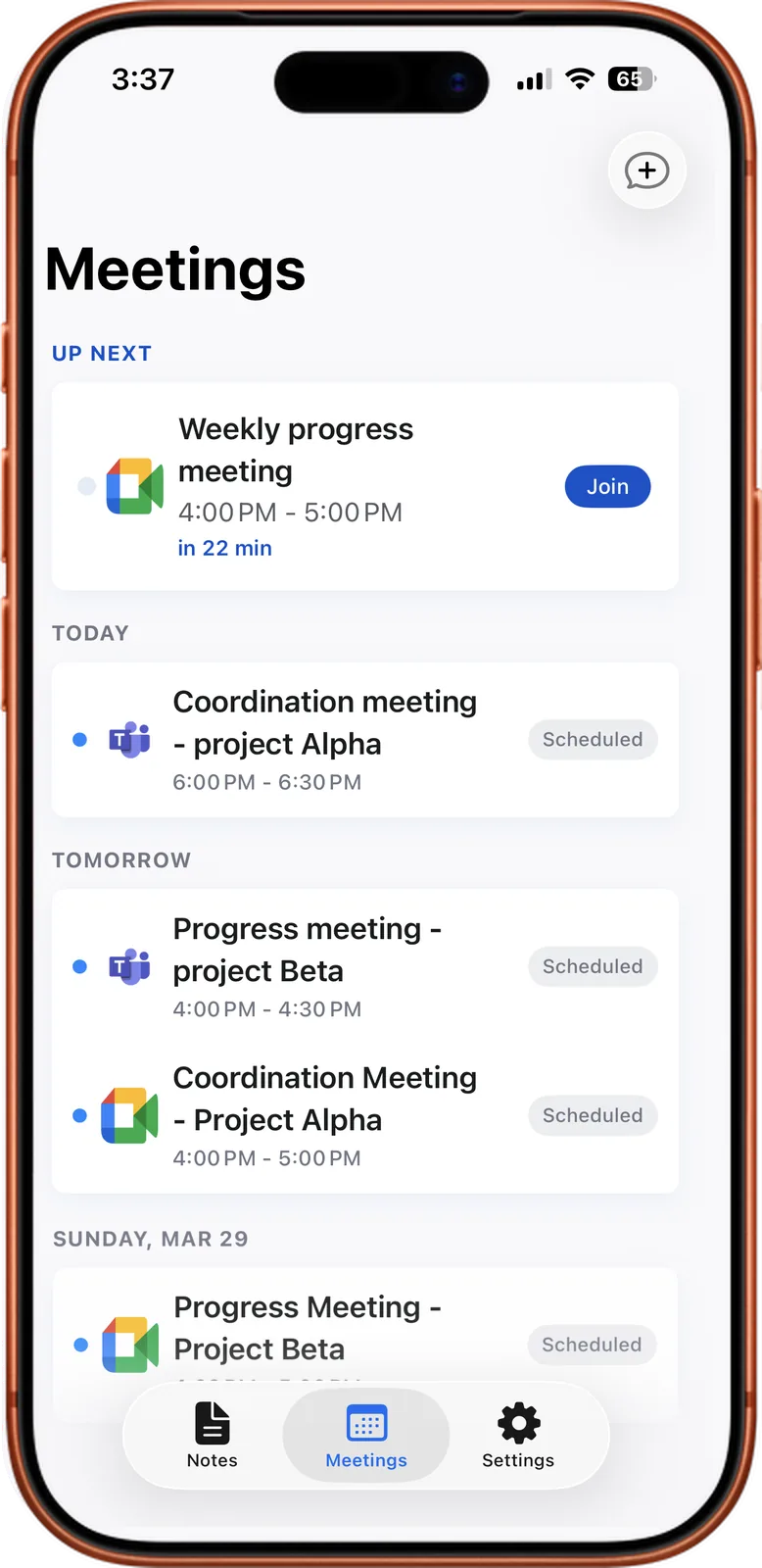
From your calendar to a note
How it works
- 1Connect your calendar. In the app, connect Google Calendar or Outlook. You do this one time.
- 2See your upcoming meetings. Meetings that have a video link appear as a list in the app.
- 3Tap Join. The bot is sent to that meeting. It joins as a visible guest on Zoom, Microsoft Teams, Google Meet or Webex.
- 4Let it in if needed. If the meeting has a waiting room or lobby, the host admits the bot like any other guest.
- 5Read the note. After the meeting, the note appears in the app with the transcript, summary and action items.
Noter AI records, transcribes and summarizes your meetings on iPhone, iPad & Android, in 60+ languages.
What the app reads from your calendar
The calendar connection has one job: to show you which meetings are coming and to give the bot the link to join.
The app reads your upcoming meetings and the video links inside them. The screenshot on this page shows the result: a list with each meeting, its time and its platform.
We keep this page to what we can state for certain. It does not describe any other use of your calendar, because listing meetings and sending the bot is what the connection is for.
What you get
| Without the calendar | With the calendar connected |
|---|---|
| Open the invite, find the link, copy it | The meeting is already in the list |
| Switch to Noter AI and paste the link | Tap Join |
| Repeat for every meeting of the day | One list for the day ahead |
| Easy to forget when you are late | The next meeting is at the top |
- One list for four platforms. A Zoom call, a Teams meeting, a Google Meet and a Webex session can sit in the same list.
- The same note at the end. A bot sent from the calendar produces the same note as a bot sent by pasting a link.
- Status on the iPhone lock screen. On iPhone, the Dynamic Island and Live Activity show the bot status and the processing status.
Sample output
This is an invented example of one working day. The names and meetings are made up.
| Calendar event | Has a video link? | What you do | Result |
|---|---|---|---|
| 09:30 Q4 launch planning with Sara | Yes, Google Meet | Tap Join | Note with transcript, summary and action items |
| 11:00 Budget review with Omar | Yes, Microsoft Teams | Tap Join, and Omar admits the bot from the lobby | Note with transcript, summary and action items |
| 13:00 Lunch with the design team | No | Nothing, or record on the phone if it becomes a work talk | No bot. A phone recording makes a note the same way |
| 15:00 Client workshop in meeting room 2 | No | Tap record in the app and put the phone on the table | Note from the room recording |
Limits and honest notes
- No link means no bot. A meeting with no video link gives the bot nothing to join. For a meeting in a room, record on the phone instead. One tap starts it, and it keeps recording with the screen locked for up to three hours.
- Four platforms. The bot joins Zoom, Microsoft Teams, Google Meet and Webex. These are the platforms it supports.
- The host can still refuse. The calendar does not give the bot extra rights. Waiting rooms, lobbies and rules against guests apply as usual.
- Two calendar services. Google Calendar and Outlook are the two calendars you can connect.
- Mobile only. The connection is made in the app on iPhone, iPad or Android. There is no web or desktop version of Noter AI.
- Consent stays with you. A meeting on your calendar is not permission to record it. Tell the attendees before the bot joins.
When to paste a link instead
The calendar is the quick path for planned meetings. Some calls never reach your calendar: a colleague sends a link in a message, or a client forwards an invite to a different email address.
For those, copy the meeting link and paste it in the app. The bot joins the same way. You can use both methods on the same day, and you do not need a connected calendar to use the bot.
Frequently asked questions
Which calendars can I connect to Noter AI?
Google Calendar and Outlook. After you connect one, upcoming meetings that contain a video link are listed in the app.
What does Noter AI read from my calendar?
Your upcoming meetings and their meeting links. That is what the app needs to show the list and to send the bot to the right call.
Why is one of my meetings missing from the list?
The most likely reason is that the event has no video link. The list is for meetings the bot can join, so an event with only a room or an address has nothing to offer the bot.
Do I have to connect a calendar to use the bot?
No. You can always paste a meeting link and send the bot that way. The calendar only saves you the copy and paste.
How do I record a meeting that has no link?
Use the phone as the recorder. Start a recording in the app, leave the phone on the table, and you get the same kind of note with transcript, summary and action items.
Does a calendar meeting on Teams or Zoom need anything installed?
No. The bot joins from the link in the event. Nothing is installed inside Zoom, Teams, Meet or Webex, and nothing is added to the calendar itself.
Is calendar sync an extra cost?
No. Noter AI has one plan that includes everything, and there is a free plan to try the app. Prices are on the pricing page.
Let Noter AI take your meeting notes
Record, transcribe, and summarize meetings on iPhone, iPad & Android, or send a bot to Zoom, Teams, Meet, or Webex. In 60+ languages.

On your computer? Scan with your phone to get the app.
