

How to record a meeting on an Android phone and get notes from it
Your Android phone can record a meeting well enough to produce a full set of notes. This guide covers the recording itself, then the ways to turn the audio into text, a summary and action items.
Updated October 2026
Open the voice recorder app on your Android phone, put the phone in the middle of the table, turn on do-not-disturb and press record. After the meeting, turn the audio into notes by typing it up yourself or by giving the file to a transcription app. For a video call, use the call's own recording or a meeting bot instead of the phone's microphone.
Record a meeting with the recorder your phone already has
Most Android phones come with a voice recorder app. It differs by phone maker, so the name, the buttons and the extras on a Samsung phone are different from those on a Pixel, a Xiaomi or a OnePlus. Search your app list for "recorder". If your phone has none, install a recorder from Google Play.
The steps below work with any recorder app. They take about two minutes before the meeting starts.
- 1Check battery and storage. Charge the phone or bring a power bank. Make sure there is free space, because a long recording is a large file.
- 2Turn on do-not-disturb. This stops ringtones and notification sounds from landing in the recording. For a meeting you cannot afford to lose, use airplane mode so no call can come in at all.
- 3Tell the people in the room. Say you are recording and why. In many places this is a legal requirement.
- 4Make a 10-second test. Record yourself and one person at the far end of the table, then play it back. If the far voice is weak, move the phone.
- 5Place the phone. Put it in the middle of the table, screen up, with the bottom edge pointing at the people who speak most. On most phones the main microphone is on the bottom edge. Rest it on a notebook or a cloth so table knocks are softer.
- 6Press record and lock the screen. Look at the phone once after a minute to confirm the timer is still running.
- 7Stop and name the file. Use the date and the meeting name, for example "2026-10-13 weekly team sync". You will thank yourself when you have twenty recordings.
Noter AI records, transcribes and summarizes your meetings on iPhone, iPad & Android, in 60+ languages.
Meeting in a room or a video call: use a different method
A phone microphone records the air around it. That is right for a room and wrong for most video calls. If you join a call on the same phone you record with, the meeting app is already using the microphone, and the recorder often captures only your own voice or nothing useful.
Pick the method by where the other people are. The table below is an overview of the common cases.
| Situation | Best way to capture it | What you need | Watch out for |
|---|---|---|---|
| Everyone is in one room | Phone recorder in the middle of the table | A charged phone and free storage | People sitting far from the phone |
| Large room or a long table | Two phones, one at each end, or a small external microphone | A second device, and a note of which file is which | Two files to join or transcribe separately |
| Video call on a laptop | The call's own recording feature | Permission from the host | Often the host controls who can record |
| Video call, you are a guest | A meeting bot that joins the call as a participant | The meeting link | The host can keep guests in a waiting room |
| Video call, nothing else available | Play the call on a laptop speaker and record the room with the phone | A quiet room | Lower audio quality and echo |
| Some people in the room, some remote | Record the call itself, with one good room microphone feeding the call | A laptop in the room joined to the call | Room voices far from the laptop are hard to hear |
Ways to turn the audio into text and notes
A recording alone is hard to use. Nobody wants to listen to an hour of audio to find one decision. You need text, and then a short version of the text.
There are five general approaches. They differ mostly in how much of your own time they cost.
| Approach | Your effort | What you get | Good for |
|---|---|---|---|
| Listen again and type notes by hand | High. Often longer than the meeting itself | Notes in your own words, no full transcript | Short meetings and sensitive topics you want to keep on the phone |
| Live captions or dictation running during the meeting | Medium. You must keep the screen on and clean up the text after | Rough text with no speaker names | One clear speaker, such as a talk |
| A recorder app with built-in transcription | Low to medium. Depends on the phone maker and the language | A transcript, sometimes a summary | Phones that have this feature, in a language it supports |
| Upload the file to a transcription service, then write the summary yourself | Medium. The transcript is automatic, the notes are your work | A full transcript and your own summary | People who want full control of the wording |
| An AI meeting notes app that records, transcribes and summarises | Low. Press record, then read | Transcript with speaker labels, summary and action items | Regular meetings where follow-up matters |
- If you write notes by hand, a fixed layout saves time. This meeting minutes template is a good start.
- If your file is in M4A format, which many recorders produce, see how to transcribe an M4A file.
- If you are choosing an app, the Android note taker comparison lists what each one does.
Common problems and fixes
Most failed recordings fail for one of a few reasons. All of them are easier to prevent than to repair.
| Problem | Why it happens | Fix |
|---|---|---|
| Voices at the far end are faint | A phone microphone is made for a voice close to it | Move the phone to the centre, ask quiet speakers to sit nearer, or use a second phone at the other end |
| A phone call interrupts the recording | An incoming call takes over the microphone, and many recorders pause or stop | Use airplane mode, or do-not-disturb with calls blocked. After any interruption, check the timer is running again |
| The recording stops by itself after a while | Battery-saving settings on some phones close apps that run in the background | Before the meeting, allow the recorder app to run without battery limits in your phone's settings, and keep the phone charging |
| Storage runs out in a long meeting | Long recordings at high quality are large files | Free up space first. For a meeting of several hours, stop and start a new file at each break |
| Table noise covers the speech | Typing, cups and paper sound loud next to the microphone | Put the phone on something soft and keep laptops away from it |
| You cannot find the file later | Recorder apps save to different folders by phone maker | Rename the recording right after the meeting and share a copy to your cloud storage |
How Noter AI does it on Android
Noter AI is a meeting notes app for Android, iPhone and iPad. It records the meeting and writes the notes in the same place, so there is no file to move between apps. Get it on Google Play or, for an iPhone or iPad, on the App Store.
- 1Start recording with one tap. Open the app and tap record. There is no language to choose first, because the language is detected automatically.
- 2Lock the screen. The recording continues with the screen locked and while the app is in the background. One recording can run for up to three hours. More detail is on the in-person recording page.
- 3Or import audio you already have. If you recorded with your phone's own recorder, import the file. M4A, MP3, WAV and other audio formats work.
- 4For a video call, send the bot. Paste a Zoom, Microsoft Teams, Google Meet or Webex link and the meeting bot joins as a visible guest and records the call. Your phone's microphone is not involved.
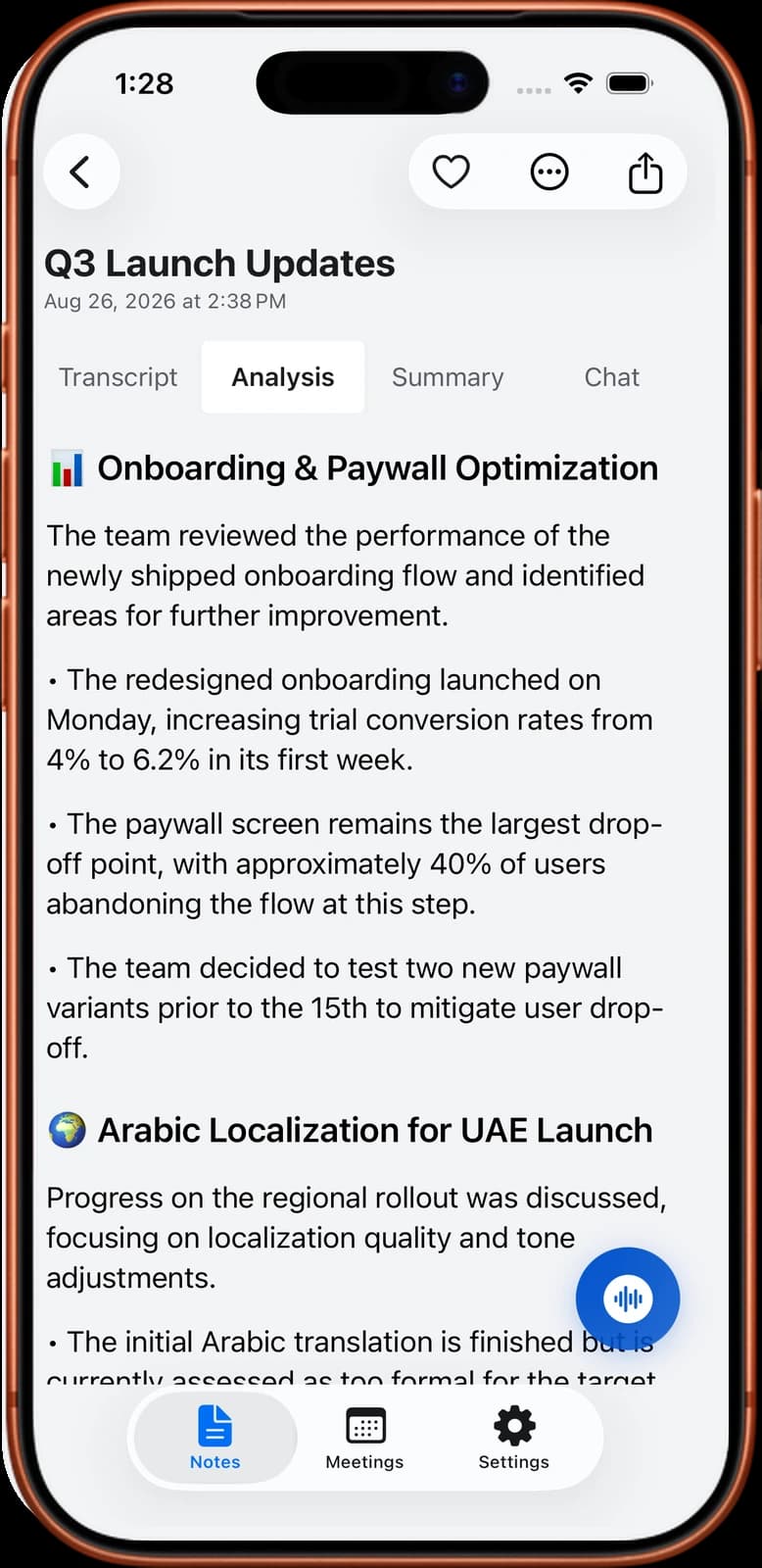
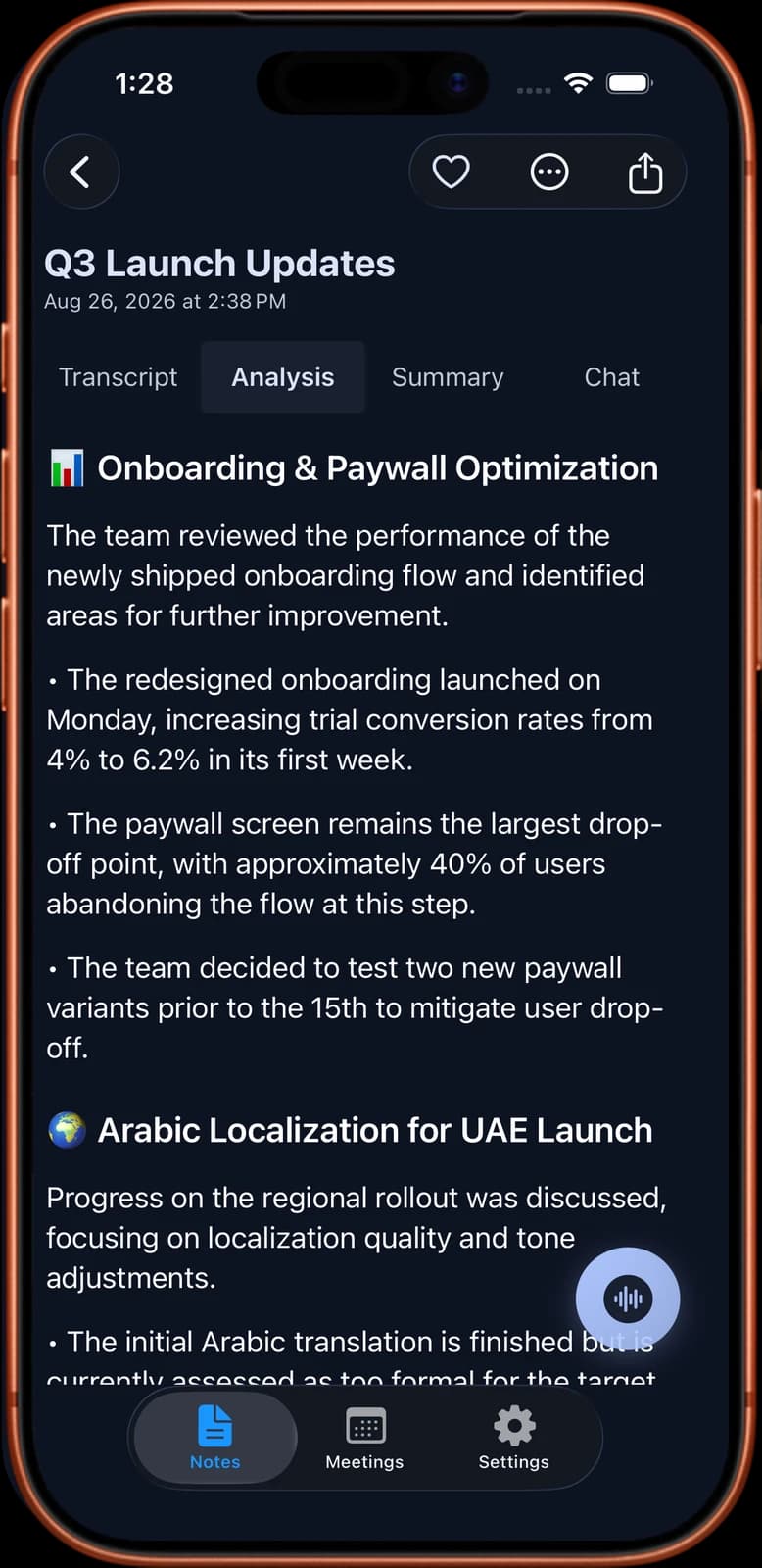
- 5Read the note. A 1-hour recording takes about 2 minutes to process. The note has a transcript with speaker labels and a timestamp on every line, a summary, a detailed analysis and action items with assignees.
Sample output: action items from a team meeting
The card below is an invented example. It shows the kind of action list you get from a 40-minute weekly team meeting with three people. The names and tasks are made up.
Each line has an owner and, where someone said one in the meeting, a date. You can edit the list in the app. There is more on this in how to get meeting action items automatically.
Sara: send the revised price list to the two pilot customers by Thursday.
Sara: book a 30-minute call with the supplier about the late delivery.
Omar: fix the sign-up form error on Android before the next release.
Omar: share the test results in the team channel by Wednesday.
Lina: write the first draft of the November newsletter by Friday.
Lina: ask finance to confirm the budget for the trade show.
Sara and Omar: agree on the release date and tell the team on Monday.
Decision: the trade show stand is approved if finance confirms the budget.
Open question: who covers support during the holiday week. No owner yet.
Next meeting: Tuesday 20 October, same time.
Consent, privacy and limits
Tell people before you record. Rules about recording conversations differ from country to country, and in some places between regions of one country. You are responsible for following them. Start with meeting recording laws by country. Asking at the start of the meeting is the safe habit everywhere.
Know where the audio goes. A file made with your phone's recorder stays on the phone until you move it. With Noter AI, notes and audio are stored on Google Cloud, encrypted in transit and at rest, and are not used to train AI models. You can delete a note or your whole account at any time.
Noter AI has limits you should know before you rely on it:
- One recording runs for up to three hours. For a longer session, start a new recording at a break.
- It runs on Android, iPhone and iPad only. There is no web app and no desktop app.
- It imports audio files. It does not import video files.
- The bot is a visible guest. A host can keep it in a waiting room or block guests, and then it cannot record.
- No transcript is perfect. Clear audio matters more than anything else, so the placement steps above still apply.
Frequently asked questions
Does every Android phone have a voice recorder app?
Most do, and it is made by the phone maker, so it looks different on each brand. If you cannot find one in your app list, install a recorder from Google Play. Any of them is fine for a meeting if it keeps recording with the screen off.
Can I record a Zoom or Google Meet call on the same Android phone I am using for the call?
It usually works badly. The meeting app holds the microphone, so a second recorder often gets only your side or silence. Use the call's own recording if the host allows it, or send a meeting bot that joins the call as a guest.
Will the recording stop when my screen locks?
It depends on the app and on your phone's battery settings. Test it once before a real meeting: start a recording, lock the phone for ten minutes, then check the length. Noter AI is built to continue with the screen locked.
How long can I record on an Android phone?
With a plain recorder app, the limits are your free storage and your battery. In Noter AI, a single recording can run for up to three hours. For a full-day workshop, make one recording per session.
Where should I put the phone in a meeting room?
In the centre of the table, on something soft, with the microphone edge toward the main speakers. Keep it away from laptop fans, keyboards and projectors. A short test recording tells you more than any rule.
What if the meeting is in two languages?
Many transcription tools ask you to pick one language before you start, which fails when people switch. Noter AI detects the language automatically across 60+ languages and handles speakers who change language during the meeting. You can also choose the language of the summary.
Can I use a recording I made last week?
Yes. An old audio file works the same as a new one in most transcription tools. In Noter AI, import the file and you get the same transcript, summary and action items as for a live recording.
How much does Noter AI cost on Android?
There is one plan with every feature: $11.99 per month, $89.99 per year or $5.99 per week in US prices. There is a free plan to try the app and a free trial on every subscription. Billing goes through Google Play, and you cancel there.
Let Noter AI take your meeting notes
Record, transcribe, and summarize meetings on iPhone, iPad & Android, or send a bot to Zoom, Teams, Meet, or Webex. In 60+ languages.

On your computer? Scan with your phone to get the app.
