

Export and share meeting notes: PDF, Word and text
Noter AI exports a meeting note as a PDF, a Word file (.docx) or plain text. You can also copy the note with its formatting, or send it to another app through the share sheet. This gets the note out of your phone and in front of the people who need it.
Updated October 2026
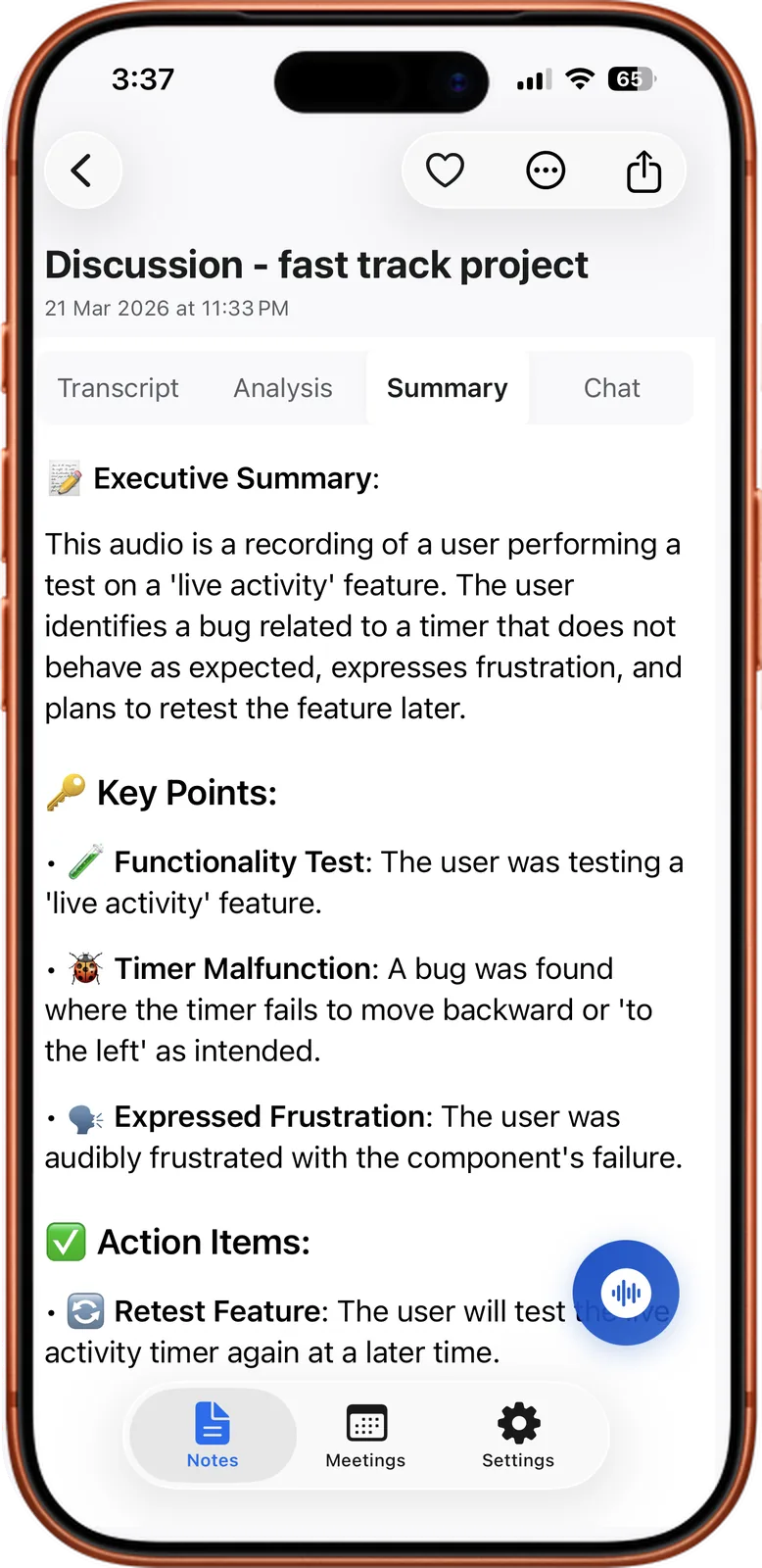
One note, three files
Discussion - fast track project
21 Mar 2026 · Summary
Executive Summary
A recording of a user testing a live activity feature. The user finds a bug in a timer, and plans to retest later.
Key Points
- Functionality test. The live activity feature was tested.
- Timer malfunction. The timer does not move backward.
Action Items
Retest the live activity timer at a later time.
How it works
- 1Open the note you want to send. It can come from a recording in the room or from a video call the bot joined.
- 2Pick the output style first. Choose minutes of meeting, key bullet points, email, to-do list, formal report, or your own instruction.
- 3Edit anything that is wrong. The summary can be edited, so fix names and numbers before the note leaves the app.
- 4Choose how it goes out. Export as PDF, Word or plain text, copy it, or open the share sheet.
- 5Send it. Attach the file, paste the text, or pick the app in the share sheet.
Noter AI records, transcribes and summarizes your meetings on iPhone, iPad & Android, in 60+ languages.
What you get: export formats and what each is good for
| Format | What it is | Good for |
|---|---|---|
| A fixed file that looks the same on every device | Sending minutes to a client, filing a record, anything that should stay unchanged | |
| Word (.docx) | A file the reader can edit | Minutes that a colleague will finish, a report that needs your company layout |
| Plain text | The words only, with no styling | Pasting into a tool that strips formatting, or keeping a small simple copy |
| Copy with rich formatting | The note on your clipboard, with headings and bullets | Pasting into an email or a document while keeping the structure |
| Share sheet | The standard share menu on your phone or tablet | Sending the note straight to a mail, chat or files app you already use |
- No caps on summaries. The plan has no AI credits, so you can rewrite a note in another style before you export it.
- The same recording can be exported in more than one style. Send formal minutes to the client and a to-do list to your team.
Sample output
This is an invented example. It shows what the Email output style could produce for a short Q4 launch meeting, ready to copy into a mail app.
- Subject: Q4 launch meeting recap and next steps
- Opening: Hi all, thank you for joining today. Here is a short recap of what we agreed.
- Decision 1: The launch date is 18 November.
- Decision 2: We will run the early offer for two weeks only.
- Next step, Sara: send the final price list to partners by Thursday.
- Next step, Omar: confirm the event venue by Friday.
- Closing: Please reply if I missed anything. Our next meeting is on Monday.
Sending a recap by email using the Email output style
Email is one of the six output styles. It rewrites the meeting as a message you can send, with a greeting, the decisions and the next steps.
Noter AI writes the text. You send it from your own mail app, so it goes out from your address and you choose who gets it.
- 1Open the note and switch the output style to Email.
- 2Read it once. Correct any name, date or number that is wrong.
- 3Copy it with rich formatting, or use the share sheet and pick your mail app.
- 4Add the people who were in the meeting and send.
- Send it the same day. A 1-hour recording is ready in about 2 minutes, so the recap can go out while people still remember the meeting.
- Write in the reader's language. The summary can come in the meeting's language or in a language you choose.
- Want to compare with a hand-written one? See the meeting recap email template and the follow-up email after a meeting.
Limits and honest notes: what is not there
- No automatic sync to other apps. Noter AI does not push notes into other tools for you. You export, copy or share each note yourself.
- It does not send email for you. It writes the email text, and you send it.
- Three file formats. Export is PDF, Word and plain text. Other file types are not offered.
- No web or desktop app. You export from your iPhone, iPad or Android device. To work on a computer, send the file to yourself.
- Export is one way. The app imports audio. It does not import PDFs or video files.
Before you send a note outside your team
A summary written by AI is a draft until someone has read it. Two minutes of checking saves an awkward correction later.
- Check names. Spoken names and company names are the most common mistakes in any transcript.
- Check numbers and dates. Open the transcript, tap the line, and listen to the audio from that moment.
- Rename the speakers. A note that says who spoke is more useful than one with generic labels.
- Check each action item has the right person. Action items come with assignees, and the reader will act on them.
- Think about who was recorded. If the note quotes people, make sure they knew the meeting was recorded.
Who uses export the most
- People who send minutes. A PDF of the minutes of meeting style goes to everyone who attended. See the meeting minutes template.
- Consultants. A Word file lets the client add comments. More on this in Noter AI for consultants.
- Project managers. The to-do list style, copied into a team chat, turns the meeting into tasks. See Noter AI for project managers.
Frequently asked questions
Which file formats can I export meeting notes to?
PDF, Word (.docx) and plain text. You can also copy the note with rich formatting or send it through the share sheet.
Should I send a PDF or a Word file?
Send a PDF when the note is final and should look the same for everyone. Send a Word file when the reader needs to edit it or add comments.
Does Noter AI send notes to my other apps automatically?
No. There is no automatic sync. You export a file, copy the text or use the share sheet to pass a note to another app.
Can Noter AI email the recap to attendees for me?
It writes the recap in the Email output style. You then copy it or share it to your mail app and send it yourself.
Does copying keep the headings and bullet points?
Yes. Copy with rich formatting keeps the structure when you paste into an app that accepts formatted text. Use plain text for apps that do not.
Can I change the note before I export it?
Yes. You can edit the summary, rename the speakers, and run the same recording through a different output style before you export.
Can I export from a computer?
No. Noter AI is an app for iPhone, iPad and Android, with no web or desktop version. Export on your device and send the file to your computer.
Let Noter AI take your meeting notes
Record, transcribe, and summarize meetings on iPhone, iPad & Android, or send a bot to Zoom, Teams, Meet, or Webex. In 60+ languages.

On your computer? Scan with your phone to get the app.
