

Noter AI for Google Meet
Paste a Google Meet link into Noter AI and a bot joins the call as a guest and records it. A few minutes after the call you have a transcript with speaker names, a summary and a list of action items in the app. There is no extension to add to Meet or to your browser.
Updated October 2026
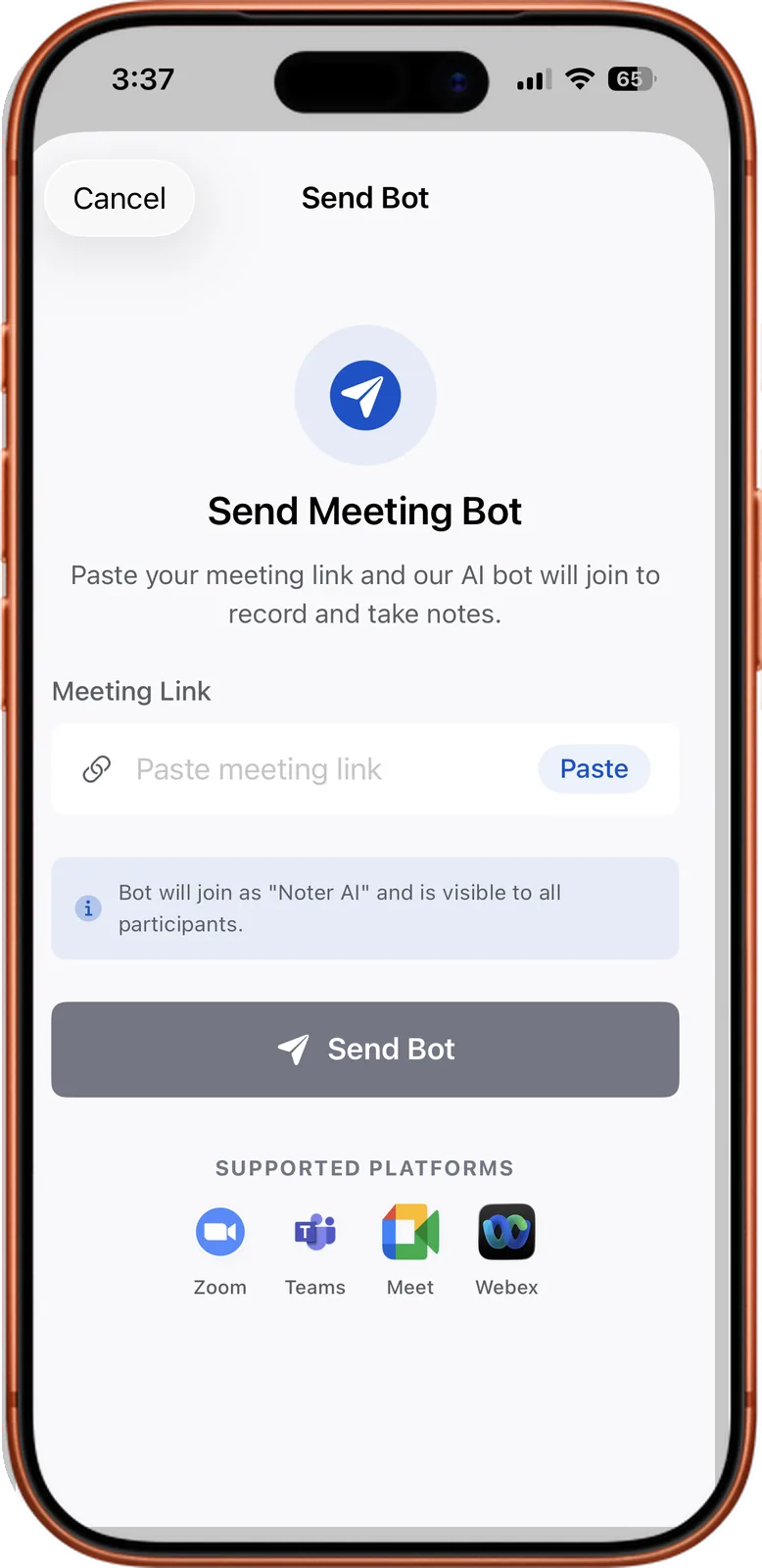
From a Meet link to a note
Two ways to capture a Google Meet meeting
Teams that work in Google Workspace create Meet links all day. A link is added to a calendar event, or someone drops one in a message and the call starts a minute later. Noter AI works from that same link, so it suits planned meetings and quick ones.
- Send the bot. Give the app the Meet link. The bot asks to join as a guest, and everyone sees it in the call. Use this when you are remote.
- Record on your phone. If you are sitting with colleagues around one laptop or a room screen, start a recording in the app with one tap. The phone microphone captures the room. It keeps recording when the screen locks, and one recording can last up to three hours.
Noter AI records, transcribes and summarizes your meetings on iPhone, iPad & Android, in 60+ languages.
How to send the bot
For a meeting that is already on your calendar, the fastest path is the calendar list. For a quick call, paste the link.
- 1Open Noter AI on your iPhone, iPad or Android phone.
- 2Choose the meeting. With Google Calendar connected, upcoming events that have a Meet link are listed, and you tap Join. For a link someone just sent you, copy it and paste it in the app.
- 3Admit the bot if Meet asks. Depending on the host settings, a guest has to be let in by someone already in the call.
- 4Finish the meeting as usual. When it is over, the note shows up in the app. Expect about 2 minutes of processing for a 1-hour call.
Host settings that can block the bot
Meet decides who can walk straight in and who must ask. The bot is a guest from outside your Google account, so these two controls apply to it.
- Host management and Quick access. These host controls decide whether guests can join directly or must ask first. When guests must ask, someone in the meeting sees a request and has to admit the bot. If the request is ignored or denied, there is no recording.
- Workspace rules on external participants. A Google Workspace administrator can restrict people outside the organisation from joining meetings. If your company has done this, the bot can be refused before anyone in the call sees a request.
- How to handle it. Tell the group that a note taker will ask to join, and admit it when the request appears. If you host the meeting, check the guest options in the meeting settings. If an admin rule blocks outside guests, record from the room on your phone.
What you get
One note per meeting. It holds the recording and everything written from it.
- Transcript. Each line has a speaker label and a timestamp. Tap a line and the audio plays from there. You can rename the speakers to real names.
- Summary and detailed analysis. Written for you after the call. The summary can be edited, and it comes in the meeting's language or in a language you pick.
- Action items with assignees. Who agreed to do what.
- Other formats from the same call. Key bullet points, minutes, an email, a to-do list, a formal report, or a format you describe in your own words.
- Mixed-language calls. Language is detected automatically in 60+ languages, including when speakers switch language in the middle of a sentence.
- Search and folders. Put notes in folders and search across note titles and AI notes, so last month's stand-up is easy to find.
Sample output
Here is an example we wrote for this page. It is not from a real meeting. Imagine a 15-minute Meet call that started from a link in a message, where three people plan content for a Q4 launch. The key bullet points style could return this:
| Topic | Key point | Owner |
|---|---|---|
| Launch video | Script is approved. Filming is on Monday. | Sara |
| Blog post | Draft needs customer quotes before review. | Omar |
| Help page | Not started. Agreed to copy the structure of the last launch. | Yusuf |
| Next check | Same group, Thursday, 15 minutes. | Sara |
- To-do, Omar: ask two customers for quotes by Wednesday.
- To-do, Yusuf: share a first version of the help page on Thursday.
Limits and honest notes
- The bot shows as a participant. People in the call can see that a guest joined. It cannot be hidden.
- It is not a Meet add-on or a Chrome extension. Nothing is installed inside Google Meet or Google Workspace.
- You control it from a phone or tablet. There is no web version of Noter AI and no desktop version. Joining Meet in your laptop browser is fine. Sending the bot happens in the mobile app.
- It listens only. The bot does not talk in the call.
- Say that you are recording. A guest in the list is not the same as consent. You have to tell people, and rules change from country to country. Our guide to meeting recording laws by country is a starting point.
Frequently asked questions
Do I need a paid Google Workspace plan?
No. The bot enters through the Meet link as a guest and does not use the host's plan features. It works on whatever plan the meeting host has.
Why is the bot asking to join my Meet call?
The host controls in that meeting require guests to be admitted. Someone in the call needs to accept the request. After that the bot records the call.
Can I send the bot to a Meet call that starts right now?
Yes. Copy the link from the message or the invite, paste it in the app and send the bot. You do not have to schedule anything in advance.
Our Workspace blocks external participants. What are my options?
The bot is an external guest, so that rule can keep it out. Your admin decides whether to change it. Without a change, play the call through a speaker and record the room with the app on your phone.
Does Noter AI need a browser extension for Meet?
No. There is no extension and no add-on. The app runs on iPhone, iPad and Android, and the bot connects to the meeting by itself.
Do I need to pick the meeting language first?
No. The language is detected automatically. If your team mixes two languages in one call, both are transcribed.
Let Noter AI take your meeting notes
Record, transcribe, and summarize meetings on iPhone, iPad & Android, or send a bot to Zoom, Teams, Meet, or Webex. In 60+ languages.

On your computer? Scan with your phone to get the app.
