

Noter AI for Zoom: transcript and notes without a plugin
Noter AI sends a bot to your Zoom meeting as a guest. It records the call, and a note with the transcript, a summary and action items appears in the app on your phone. Nothing is installed inside Zoom, and it works on whatever Zoom plan the host has.
Updated October 2026
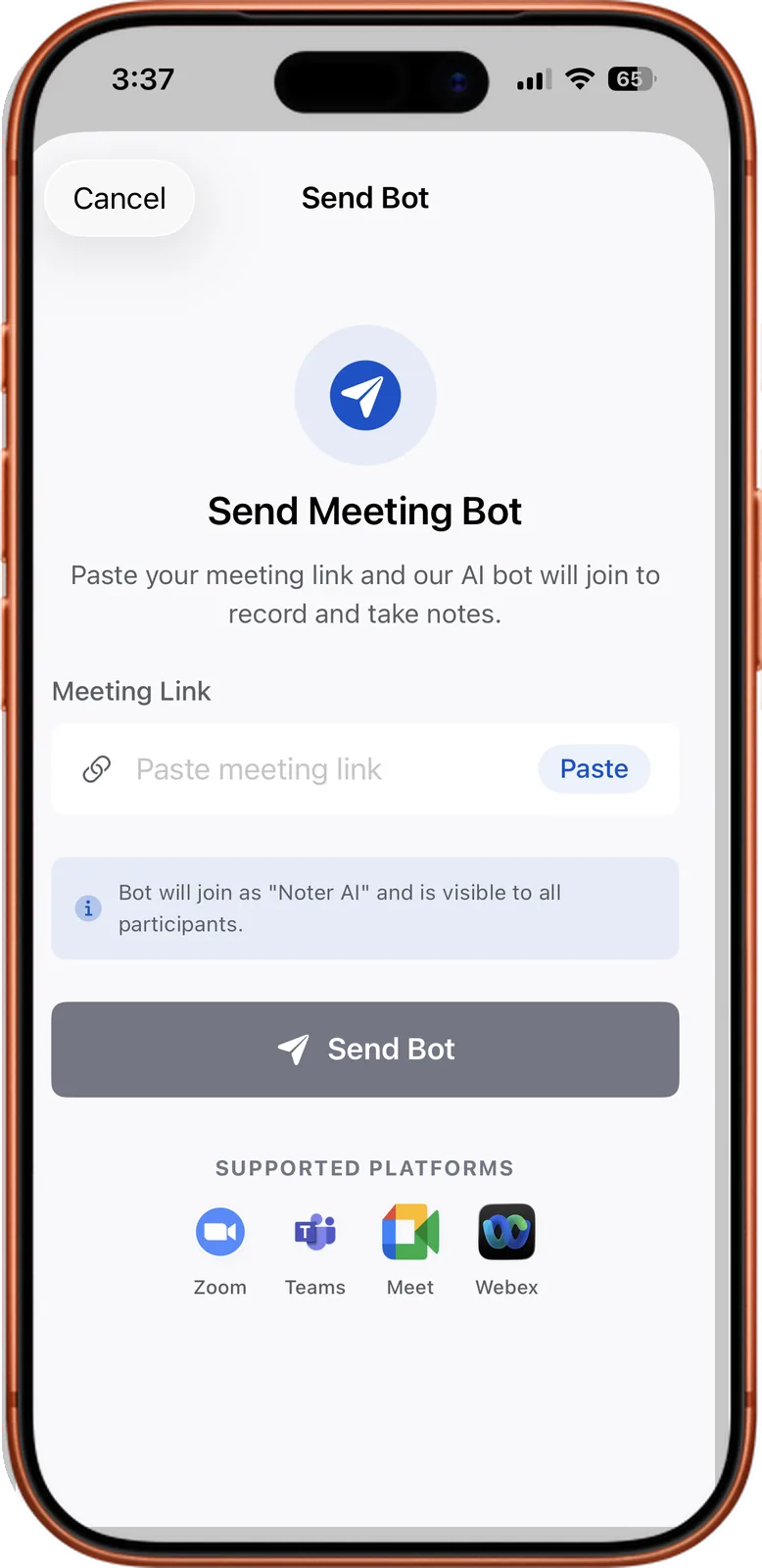
From a Zoom link to a note
Two ways to capture a Zoom meeting
Most Zoom calls with clients and prospects are hosted by someone else. You get a link in an invite and you join. Noter AI is built around that link, so you do not need to be the host or have a paid Zoom account.
There are two ways to get the call into the app. Pick by where you are sitting.
| Situation | What to do | What happens |
|---|---|---|
| You join the Zoom call from a laptop or phone | Send the bot with the meeting link | The bot joins as a visible guest and records the call |
| The Zoom call is on a screen in a meeting room and you are in that room | Tap record in Noter AI and leave the phone on the table | The phone microphone records the room, including the remote voices from the speaker |
- The bot is the better choice for a remote call. It records the meeting directly, so a weak laptop speaker does not affect the result.
- The phone is the better choice when the host will not admit a guest. Recording in the room needs nothing from Zoom. A recording runs for up to three hours and keeps going with the screen locked.
Noter AI records, transcribes and summarizes your meetings on iPhone, iPad & Android, in 60+ languages.
How to send the bot
- 1Get the app. Noter AI runs on iPhone and iPad and on Android.
- 2Copy the Zoom link. It is in the calendar invite or the email from the host.
- 3Paste the link in the app and send the bot. If your Google or Outlook calendar is connected, tap Join next to the meeting instead.
- 4Let the host admit it. If the meeting has a Waiting Room, the bot waits there like any other guest until the host lets it in.
- 5Open the note after the call. Processing takes about 2 minutes for a 1-hour recording.
Host settings that can block the bot
The bot has no special rights in Zoom. It asks to join the way a guest does, so the host's settings decide whether it gets in. Two settings matter.
- Waiting Room. When it is on, every guest waits until the host admits them. The bot waits too. On a sales call, tell the client before the meeting that a note taker will ask to join, so they are not surprised by an unknown name.
- Only authenticated users can join. With this option on, Zoom lets in only people who are signed in to a Zoom account. The bot joins as a guest, so this setting can keep it out.
- What to do when it is blocked. If you are the host, change the option in the meeting settings for that meeting. If the client is the host, ask them to admit the bot or to allow guests. If neither is possible, record the call on your phone from the room.
What you get
- A transcript with speaker labels. Every line has a timestamp. Tap a line to hear the audio from that moment. You can rename the speakers.
- A summary, a detailed analysis and action items. Each action item shows who it belongs to. All three are written automatically.
- Six output styles. Minutes of meeting, key bullet points, email, to-do list, formal report, or your own instruction. The email style is useful for the recap you send a client after the call.
- 60+ languages, detected automatically. You do not choose a language before the call, and a call that switches between two languages is handled.
- Questions across calls. Ask one note, several notes or all your notes a question. The answer comes with the source note attached.
- Export. PDF, Word or plain text, or copy with formatting to paste into your own tools.
Sample output
This is an invented example, made to show the shape of a note. It is a 25-minute Zoom call where Sara presents a Q4 launch plan to a client, Omar.
| Part of the note | Example |
|---|---|
| Summary | Omar approved the Q4 launch plan with one change: the launch moves from 3 November to 10 November so his team can finish testing. |
| Decision | Launch date is 10 November. Pricing stays as proposed. |
| Action item | Sara: send the updated timeline by Thursday. |
| Action item | Omar: confirm the testing team and share their names by Friday. |
| Transcript line | [00:14:32] Omar: If we move it one week, I can sign this today. |
Limits and honest notes
- The bot is a visible participant. Everyone in the Zoom meeting sees it in the participant list. There is no hidden mode.
- Nothing is installed inside Zoom. There is no Zoom app, plugin or extension to add, and nothing for your IT team to approve on the Zoom side.
- There is no web or desktop app. You send the bot from your iPhone, iPad or Android phone, even when you take the call itself on a laptop.
- The bot does not speak. It joins, records and leaves you a note.
- You must tell people they are being recorded. This is your responsibility, and the law differs by country. See meeting recording laws by country.
Frequently asked questions
Do I need a paid Zoom plan to use Noter AI?
No. The bot joins through the meeting link as a guest, so it works on whatever Zoom plan the host has. You also do not need to be the host.
Do I have to install a Zoom app or plugin?
No. Nothing is added to Zoom. You install Noter AI on your phone or tablet, paste the Zoom link, and the bot joins the meeting from outside.
What happens if the Zoom meeting has a Waiting Room?
The bot waits in the Waiting Room until the host admits it, the same as a human guest. If nobody admits it, it cannot record. Tell the host before the call that it will ask to join.
The host only allows authenticated users. Can the bot still join?
That option can block the bot, because it joins as a guest. Ask the host to allow guests for that meeting. If they cannot, sit in the call with the sound on a speaker and record on your phone.
Will my client see that the call is being recorded?
They will see the bot in the participant list. You should still say it out loud at the start of the call and get a yes. Telling people is your duty under most recording laws.
How fast is the Zoom transcript ready?
A 1-hour call takes about 2 minutes to process after it ends. The transcript, summary and action items arrive together in one note.
Can I run Noter AI on the laptop I use for Zoom?
No. Noter AI is an app for iPhone, iPad and Android. You can still take the Zoom call on your laptop. You only use the phone to send the bot and to read the note.
Let Noter AI take your meeting notes
Record, transcribe, and summarize meetings on iPhone, iPad & Android, or send a bot to Zoom, Teams, Meet, or Webex. In 60+ languages.

On your computer? Scan with your phone to get the app.
