

Noter AI for Webex
Noter AI can join a Webex meeting through its link, record it, and give you a transcript, written minutes and action items in the app. The bot is a visible guest and nothing is installed in Webex. In workplaces where guests are not allowed, you can record the same meeting on your phone from the room.
Updated October 2026
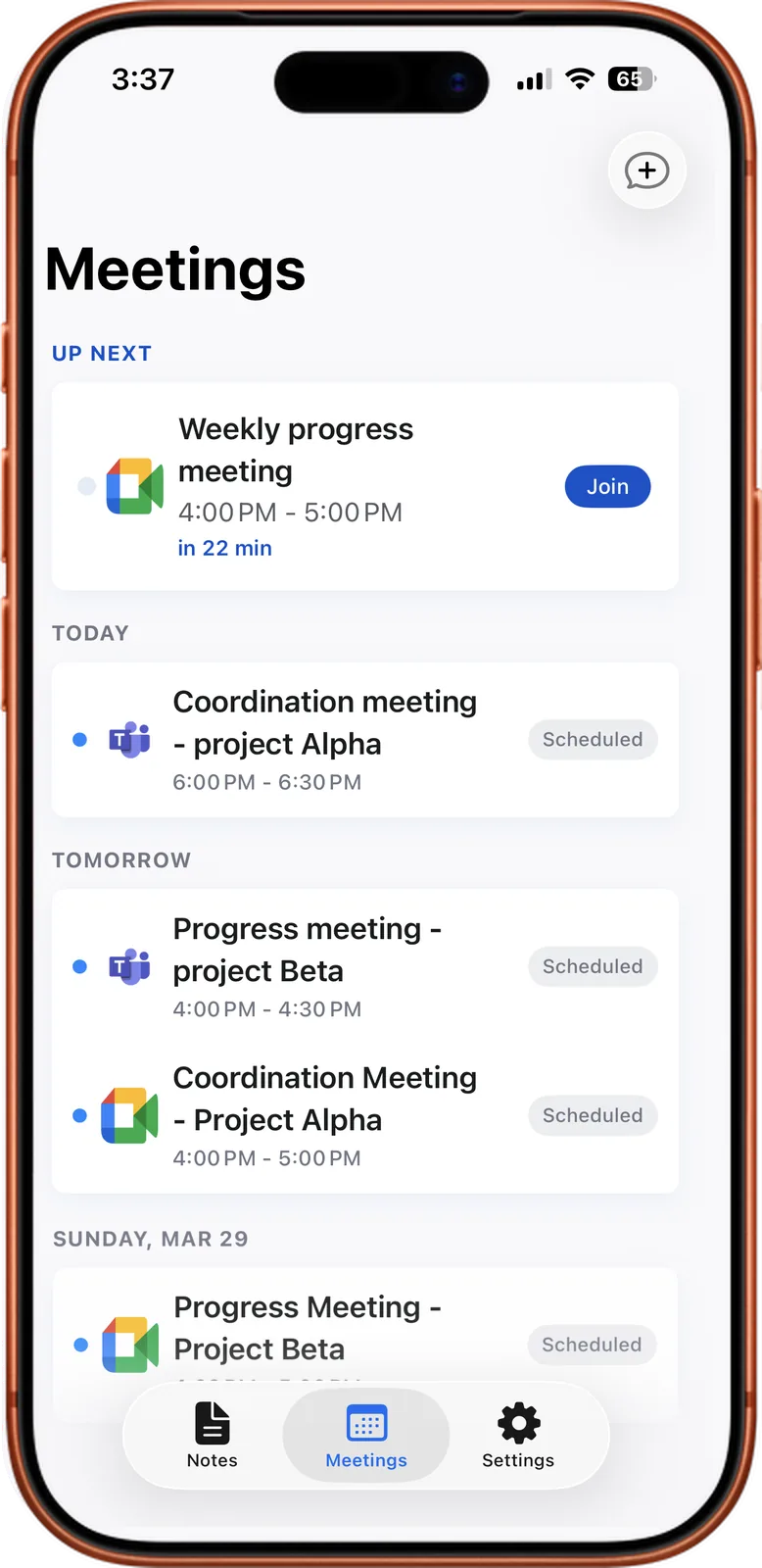
From a Webex meeting to a note
Two ways to capture a Webex meeting
Webex is common in large companies and in regulated fields such as banking, healthcare and government. Meetings there are formal, the guest list is controlled, and a written record is often required. That shapes how you should use a note taker.
Option one: the bot joins. You paste the Webex link in Noter AI, and a bot enters as a guest that all attendees can see. It records the meeting and a note appears in the app afterwards.
Option two: you record in the room. Start a recording on your phone with one tap and place it near the speaker or in the middle of the table. Recording continues with the screen locked, for up to three hours. Nothing joins the Webex meeting, which matters when the host does not accept outside guests.
In a controlled environment, ask before you choose. Some organisations allow a visible guest. Others prefer that nothing outside the company connects to the meeting.
Noter AI records, transcribes and summarizes your meetings on iPhone, iPad & Android, in 60+ languages.
How to send the bot
- 1Tell the host first. In a formal Webex meeting an unexpected guest is often refused. One sentence in advance avoids that.
- 2Copy the Webex meeting link from your invite.
- 3Paste it in Noter AI and send the bot. If the meeting is in your connected Google or Outlook calendar, tap Join on it instead.
- 4Ask the host to admit the bot from the lobby.
- 5Collect the note when the meeting ends. About 2 minutes of processing covers a 1-hour meeting.
Host settings that can block the bot
Webex gives the host firm control over who is in the meeting. Both of the controls below can stop the bot, and both are in the host's hands.
- The lobby. Guests can be held in a lobby until the host admits them. The bot waits there with the other guests. It joins only when the host lets it in.
- A locked meeting. A host can lock a Webex meeting. After that, new participants cannot simply enter. If the bot arrives after the lock, it stays outside unless the host admits it.
- Timing helps. Send the bot at the start of the meeting, before the host locks it. If you are the host, admit the bot first and lock the meeting after.
- When policy says no. If the organisation does not accept guest participants, do not try to work around it. Use the phone recording in the room, with the permission of the people present.
What you get
Formal meetings need a record that can be checked. These are the parts of a Noter AI note that help with that.
| You need | The note gives you |
|---|---|
| To check exactly what was said | A transcript with a timestamp on every line. Tap a line to play the original audio from that point. |
| To know who said it | Speaker labels, which you can rename to the real names. |
| Minutes for the file | The minutes of meeting style or the formal report style, exported as PDF or Word. |
| Follow-up | Action items with the assigned person, created automatically. |
| An answer from past meetings | Ask a question across one note, several notes or all of them. The answer shows its source note. |
| A version for another office | Transcript translation into 46 languages, with speaker labels and timestamps kept. |
Sample output
This sample is fictional and only shows the format. It is the formal report style for a 20-minute Webex review of a Q4 launch, attended by Sara, Omar and Huda.
- Purpose: confirm that the Q4 launch meets the internal review steps before release.
- Findings: two of three review steps are complete. The security review is still open and is expected on 30 October.
- Decision: the launch date is kept, on the condition that the security review closes by 30 October. If it does not, the group meets again.
- Responsibilities: Huda owns the security review. Omar prepares the release notes. Sara informs the regional offices.
- Reference: [00:11:05] Huda: "I can close the review by the thirtieth if I get the test results on Monday."
Limits and honest notes
If you work under compliance rules, read these before your first meeting.
- The bot is always visible. It is listed as a participant. Noter AI has no way to record a Webex meeting unseen.
- No Webex integration is installed. The bot comes in by link. There is nothing to add inside Webex.
- Phone and tablet only. Noter AI has no web app and no Mac or Windows app. You send the bot and read the note on iPhone, iPad or Android.
- Audio is processed in the cloud. Notes and audio are stored on Google Cloud, encrypted in transit and at rest, and are not used to train AI models. Check that this fits your organisation's policy. More detail is in where meeting recordings are stored.
- You must inform every attendee. Recording consent is the user's responsibility and the law differs by country. In a regulated workplace, your employer's rules may be stricter than the law.
Frequently asked questions
Does Noter AI work with Webex?
Yes. Webex is one of the four platforms the bot can join, along with Zoom, Microsoft Teams and Google Meet. You give the app the Webex meeting link and the bot joins as a guest.
The Webex meeting is locked. Can the bot get in?
Only if the host admits it. A locked meeting keeps new participants out. Send the bot before the host locks the meeting, or ask the host to let it in.
Is there a Webex app or integration to set up?
No. Setup is on your phone only. Install Noter AI, paste the link, and the bot connects from outside Webex.
My company does not allow outside guests in Webex. What can I do?
Follow the policy and leave the bot out. If recording is permitted, start a recording in the app on your phone inside the meeting room. That captures the room audio without anything joining Webex.
Can I delete a recording after the minutes are approved?
Yes. You can delete any note at any time, and you can delete your whole account. Export the minutes as PDF or Word first if you need to keep them.
Does the Webex host need a certain plan?
No. The bot attends as a guest, so it works on whatever plan the host has.
Can I get the minutes in a different language from the meeting?
Yes. The summary can be written in the meeting's language or in a language you choose. The transcript can also be translated into 46 languages.
Let Noter AI take your meeting notes
Record, transcribe, and summarize meetings on iPhone, iPad & Android, or send a bot to Zoom, Teams, Meet, or Webex. In 60+ languages.

On your computer? Scan with your phone to get the app.
