

How to connect your meeting notes to Claude, step by step
Connect Noter AI to Claude once, and Claude can answer questions about every meeting you recorded. The 4 steps and a short demo are right below. After them come questions to ask and fixes for common problems.
By Yousef Updated
Connect Noter AI to Claude in 4 steps
Open Noter AI in Claude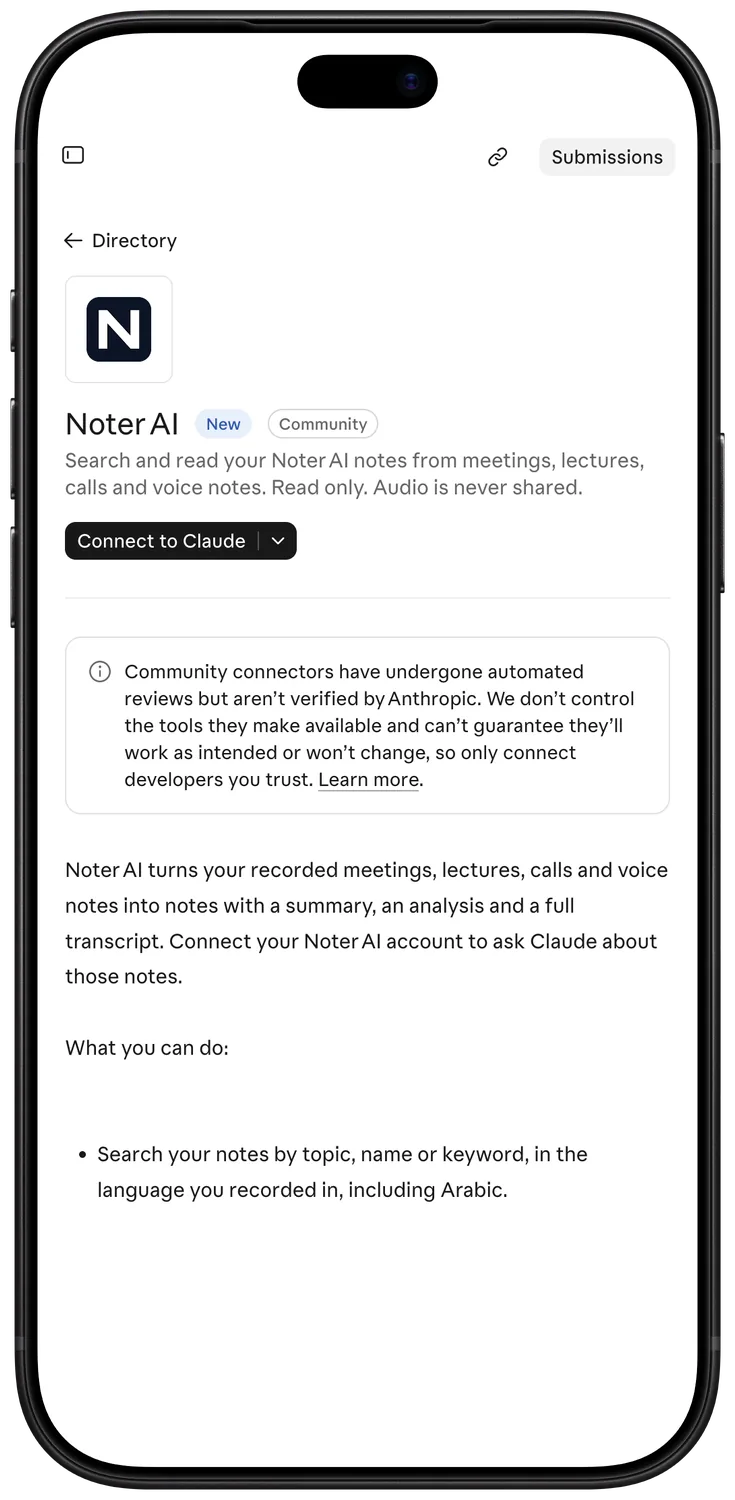
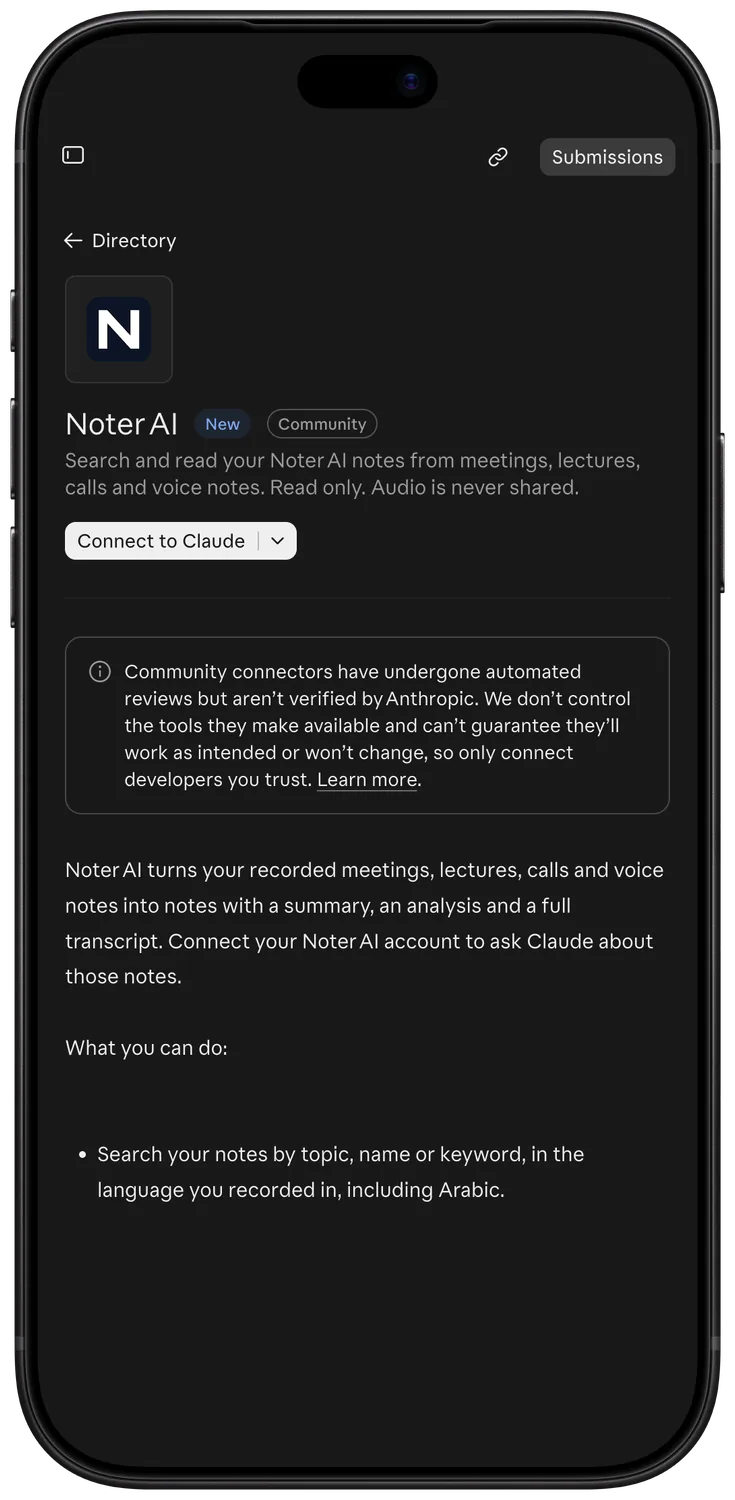
No button? In Claude, open Customize, then Connectors, and search for Noter AI in Discover.
Works best on a computer. After that, you can also ask in Claude's phone app.
You need Noter AI Premium.
Before you start
Check three things first. They cause most failed connections.
- A Noter AI account with Premium. Reading your notes from Claude is part of Noter AI Premium. Recording and the notes themselves work on every plan.
- A signed-in account, not a guest. If you use the phone app as a guest, sign in inside the app first with Apple, Google or email. Claude cannot connect to a guest account.
- A computer works best. Add Noter AI in Claude on claude.ai or in the Claude desktop app. When we checked Claude's help in November 2026, adding connectors in Claude's phone app was still in beta. Once added, Noter AI works in Claude's phone app too.
Noter AI records, transcribes and summarizes your meetings on iPhone, iPad & Android, in 60+ languages.
The steps in detail
This takes about a minute. Keep your Noter AI sign-in ready: Apple, Google or the email you use in the app.
- 1Open Noter AI in Claude. Open Noter AI in Claude takes you straight to it. If Claude asks, sign in to Claude first.
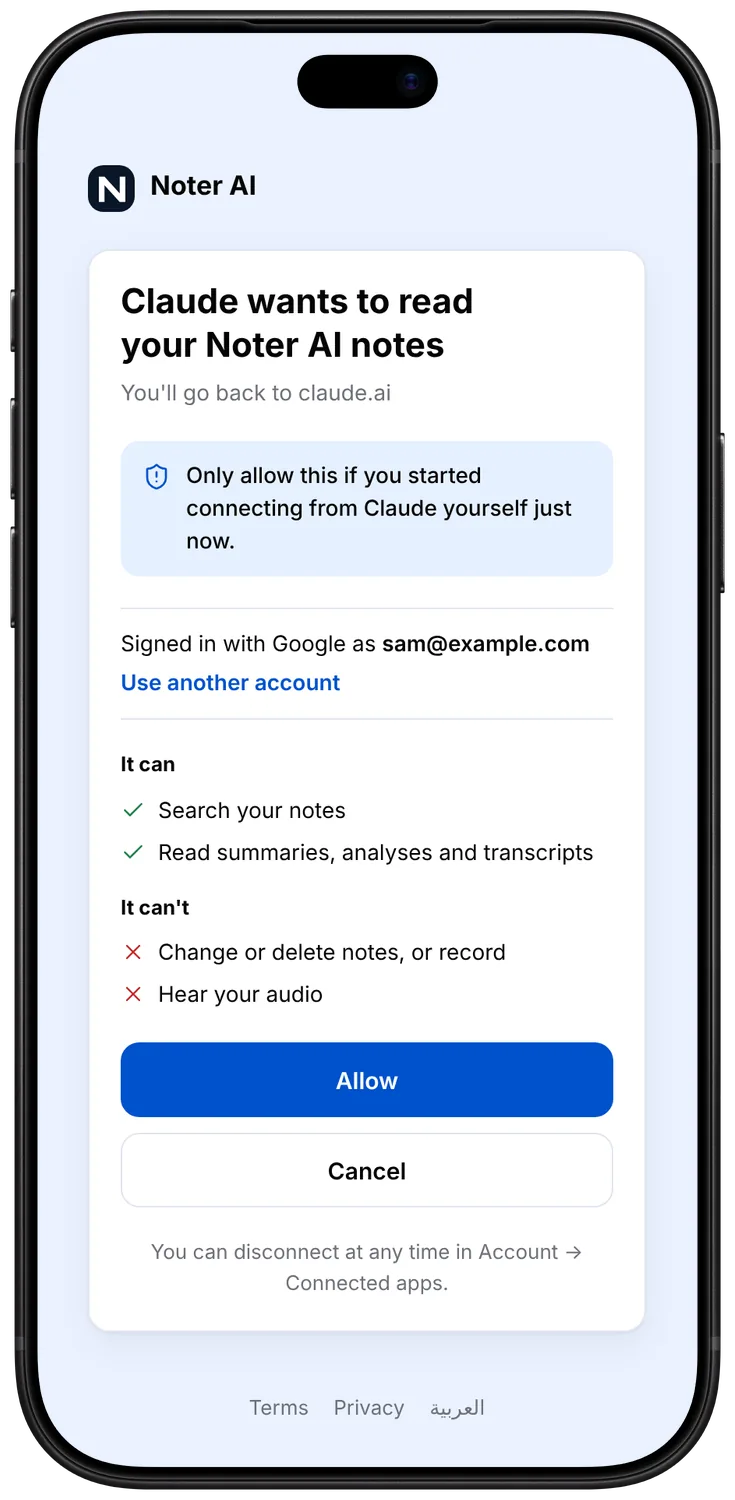
- 2Click Connect to Claude. Claude opens a Noter AI page.
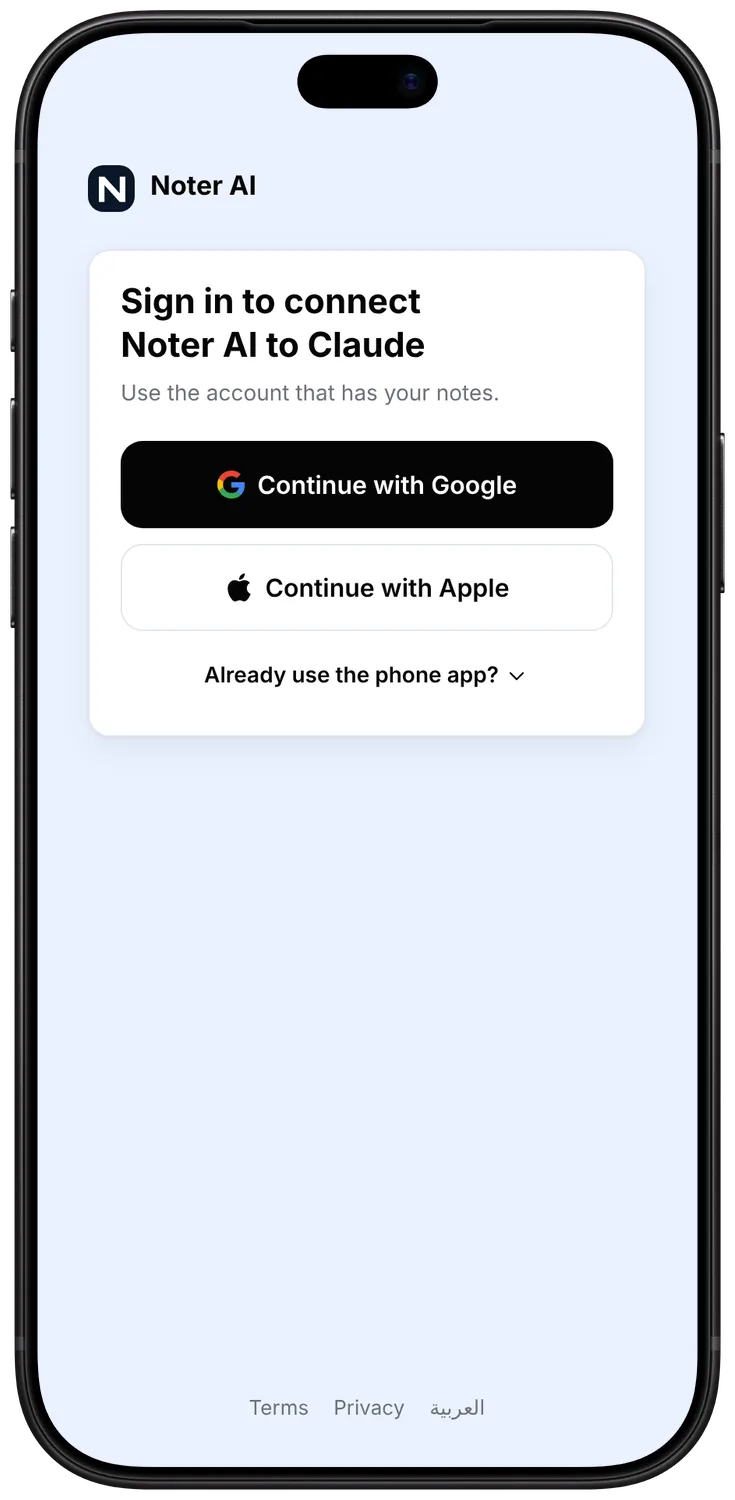
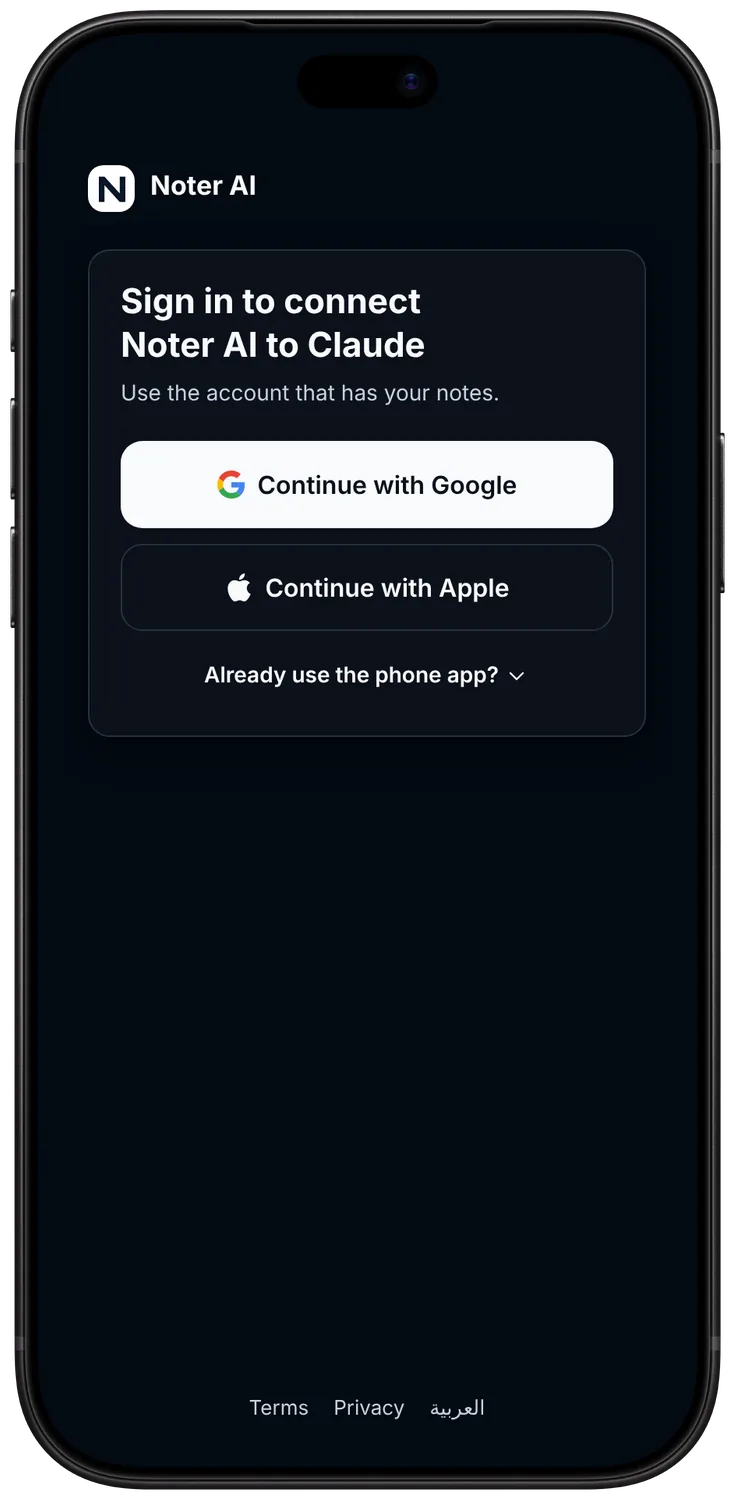
- 3Sign in to Noter AI. Use the same Apple, Google or email account you use in the app.
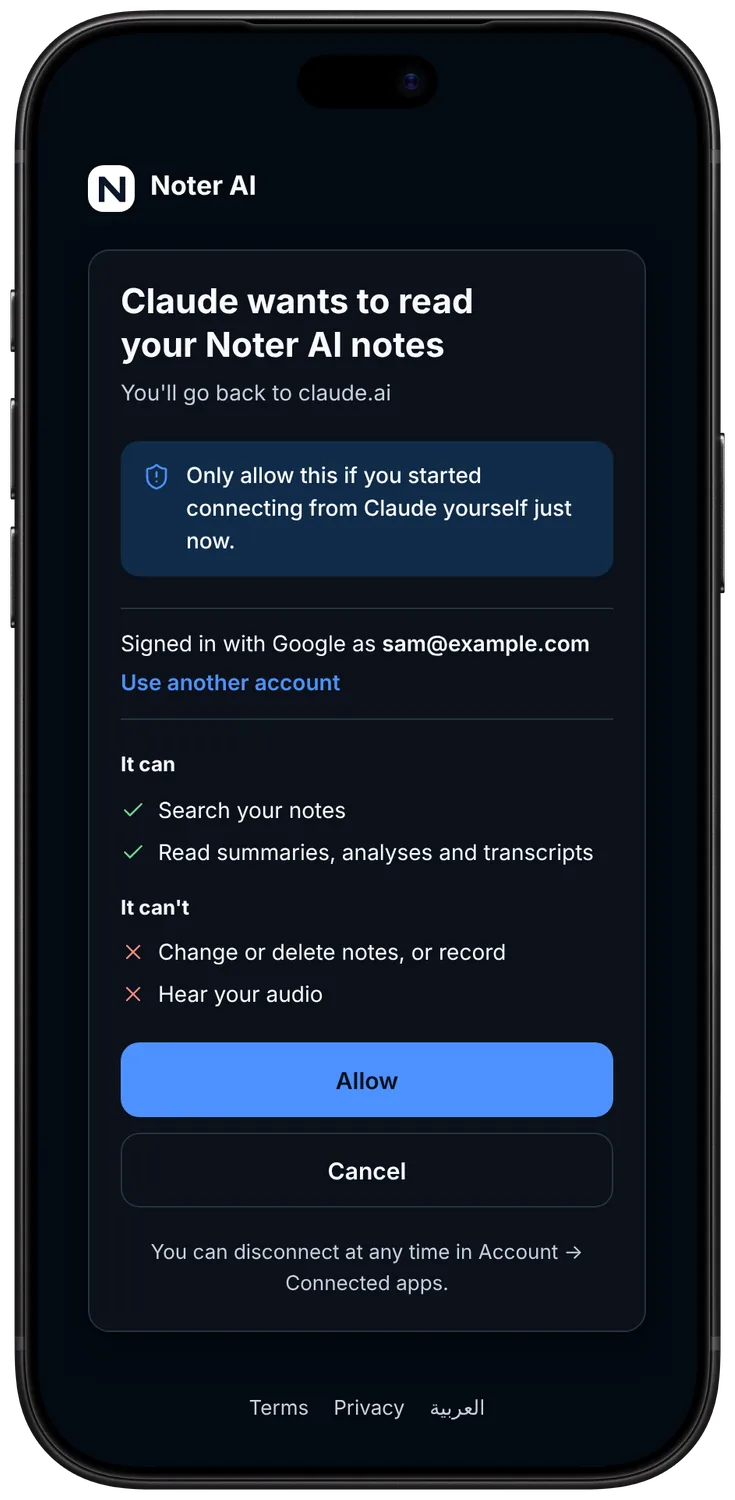
- 4Click Allow. Check that the page names Claude, then click Allow. You go back to Claude, and Noter AI shows as connected.
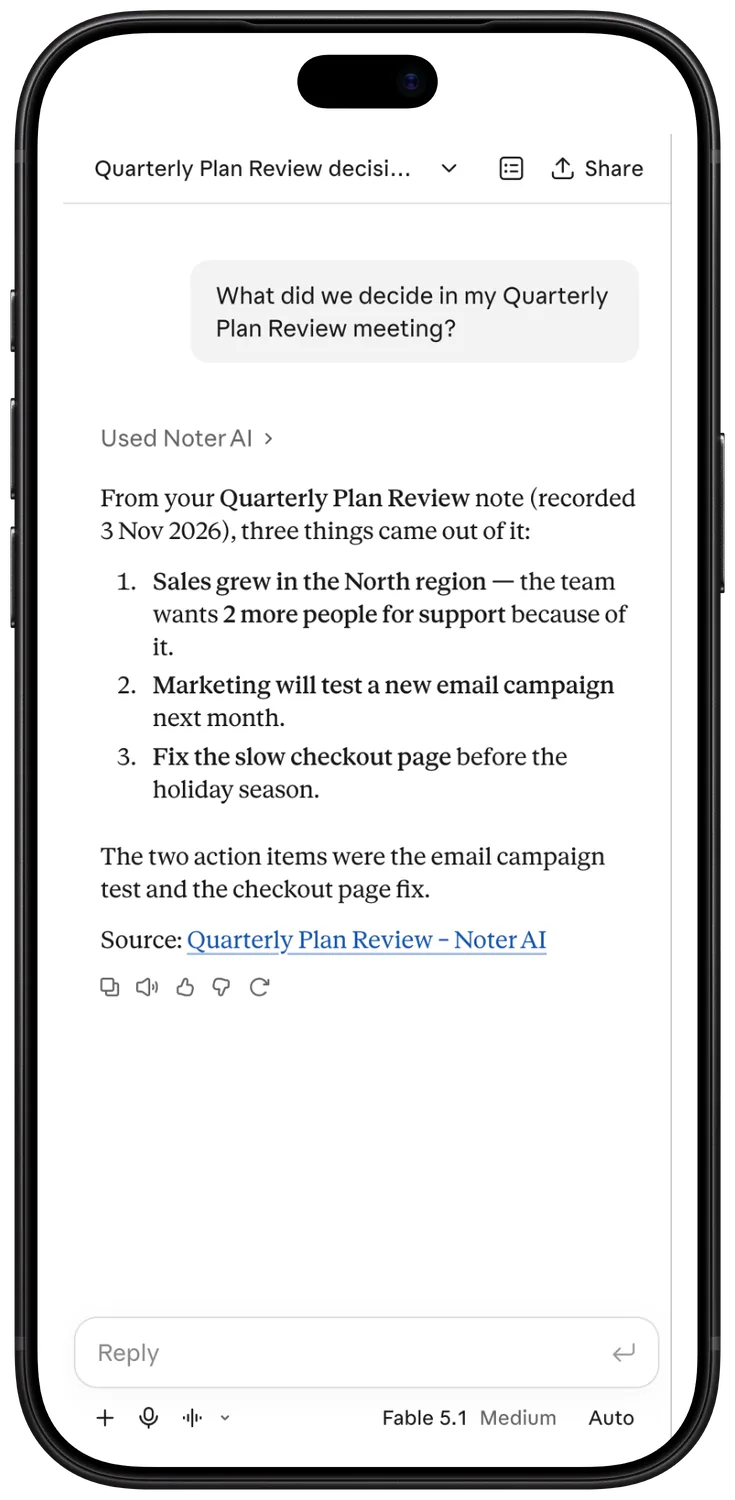
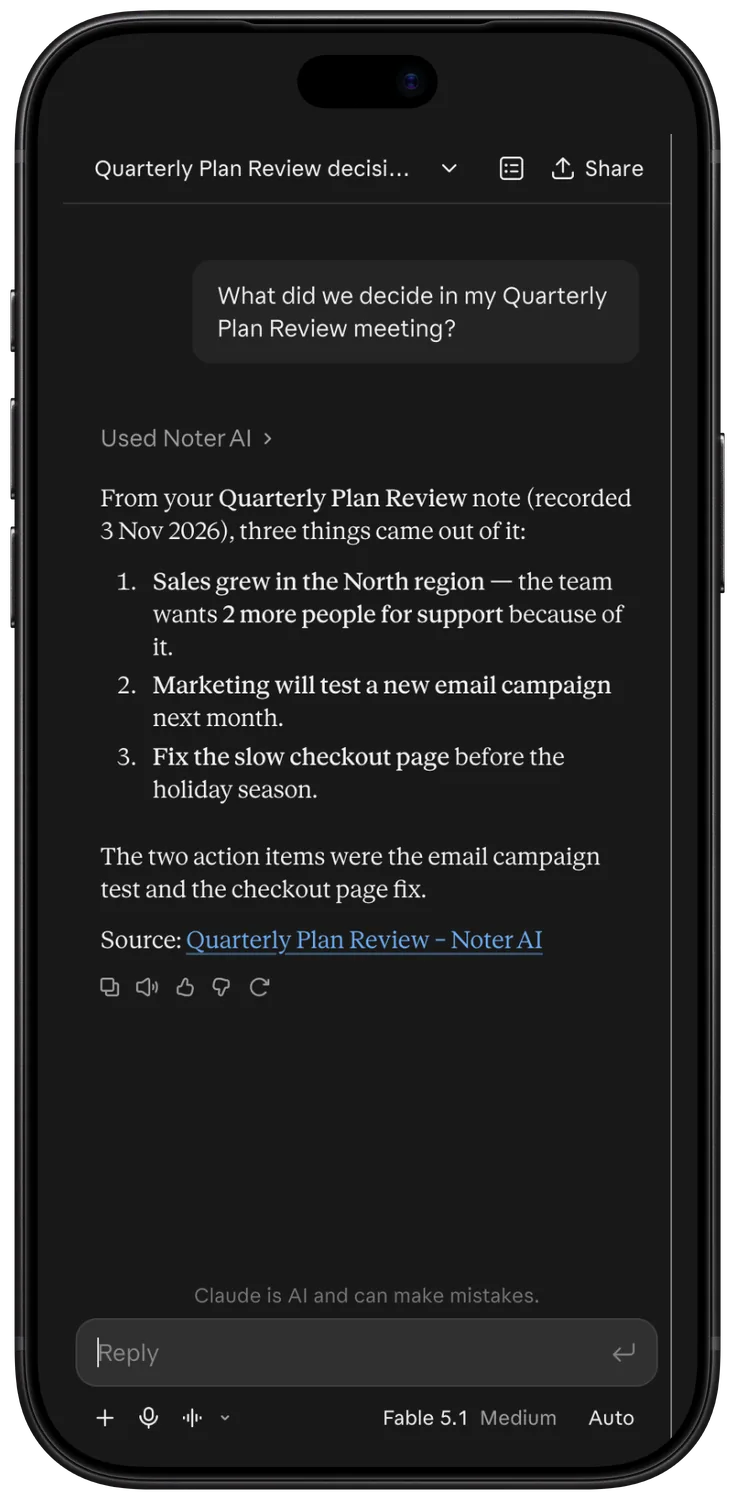
- 5Ask a first question. Try "What did we decide in my last meeting?" Claude searches your notes and answers with a link to the note it used.
If the link does not open Noter AI
Find it inside Claude instead. Open Customize, then Connectors, and search for Noter AI in Discover. Open it and click Connect to Claude. Then sign in and click Allow, as in steps 3 and 4.
Claude may ask you to sign in to Claude first. After that, open the link again.
Use it on your phone
Connectors belong to your Claude account, not to one device. So once Noter AI is connected on a computer, open Claude's phone app, signed in to the same Claude account, and ask about your notes there.
If Noter AI does not answer on the phone, add it on a computer first and then open a new chat in the phone app. You do not need to do anything in the Noter AI phone app.
Turn it on in a chat
Claude uses a connector when your question needs it. If Claude answers without looking at your notes, check that Noter AI is turned on for the chat. In the message box, open the + button or the tools menu, go to Connectors, and make sure Noter AI is switched on.
Then ask again with a clear hint, for example "Search my Noter AI notes for the budget meeting."
12 questions that work well
Ask in your own words. Questions that name a person, a project or a time period get the best answers. Claude can search your notes, list your recent notes and open one note to read it.
| Your work | Ask Claude |
|---|---|
| Sales calls | What did the client ask for in Monday's call, and what did I promise? |
| Sales calls | Which prospects mentioned price this month? |
| Team meetings | List every action item from this week's meetings, with the owner. |
| Team meetings | What did we decide about the launch date? |
| Projects | Summarize how the website project changed from September to November. |
| Lectures | Make 10 quiz questions from my last three biology lectures. |
| Lectures | What did the teacher say about the final exam? |
| Interviews | Which people I interviewed talked about remote work, and what did they say? |
| Interviews | Write a short profile of each candidate from my interview notes. |
| One-on-ones | What did Sara and I agree on in our last one-on-one? |
| Arabic meetings | ما القرارات التي اتخذناها في اجتماع الميزانية؟ |
| Many notes at once | What came up most often across my last ten calls? |
Sample: a first question after connecting
This is an invented example, made to show the shape of an answer.
Claude: From "Weekly team sync", 5 Nov, 31 minutes.
The new pricing page goes live on 12 November.
Omar writes the help article by Monday.
The team meets again on Wednesday to review sign-ups.
Open the note in Noter AI.
Problems and fixes
Most problems come from the account, the plan or the language of the question. Here is what to check.
| Problem | Why it happens | Fix |
|---|---|---|
| Noter AI does not show up when you search | Your workspace admin limits connectors, or you are searching in Claude's phone app | Search in Claude on a computer, or ask your workspace admin to allow Noter AI |
| Sign-in keeps looping | The browser blocks the sign-in window, or you are signed in to another account | Allow pop-ups for claude.ai, then try again in a private window |
| Claude finds the wrong notes, or none | You signed in with a different account than the one in the app | Disconnect, then connect again with the same Apple, Google or email account you use in the app |
| Claude says the account does not include access from Claude | The account has no Premium plan | Upgrade to Premium in the app or the web app, then ask again |
| Claude finds nothing | Notes are written in the language that was spoken | Ask again with words in that language, or ask for your recent notes by date |
| A new recording is missing | The note is still processing | Wait a few minutes until the note is ready in the app |
| Claude answers without your notes | Noter AI is off for this chat | Turn it on from the + button or tools menu, then ask again |
What Claude can and cannot do with your notes
The connection is read only. Claude can search your notes by words in the title, summary and analysis, list your recent notes, and open one note to read its summary, analysis and transcript. Long transcripts come in parts, and Claude can ask for the next part.
Claude never hears your audio. It cannot change, rename or delete a note, and it cannot start a recording. Notes go to Claude only when you ask a question that needs them.
How to disconnect
You can end the connection from either side. In the Noter AI web app, open your Account page, go to Connected apps and click Disconnect next to Claude. Or in Claude, open Customize, then Connectors, and remove Noter AI. Deleting your Noter AI account also ends the connection.
Frequently asked questions
Do I need Noter AI Premium?
Yes. Reading your notes from Claude is part of Noter AI Premium. Recording and the notes themselves work as before on every plan.
Which Claude plans can use it?
Any Claude plan that can use connectors. Check Claude's help for the current rules.
Can I connect from my phone?
It works best on a computer. When we checked Claude's help in November 2026, adding connectors in Claude's phone app was still in beta. If the button opens Claude on your phone, you can try there. If it does not work, connect on a computer, then ask about your notes in Claude's phone app.
Does Claude hear my recordings?
No. Claude reads the text of a note: the summary, the analysis and the transcript. Your audio stays in Noter AI.
Can Claude change or delete my notes?
No. The connection is read only. Changes to notes, recording and deleting happen only in the Noter AI app.
Does it work with Arabic notes?
Yes. Search handles Arabic spellings and word forms. Ask in Arabic to find notes from Arabic meetings.
Where do I find Noter AI in Claude?
Use the Open Noter AI in Claude button at the top of this page. Or, in Claude, open Customize, then Connectors, and search for Noter AI in Discover. It is in Claude's connector list.
Let Noter AI take your meeting notes
Record, transcribe, and summarize meetings on iPhone, iPad & Android, or send a bot to Zoom, Teams, Meet, or Webex. In 60+ languages.

