

How to take meeting minutes in Microsoft Teams
Microsoft Teams hosts the meeting, but someone still has to write the minutes: who attended, what was decided and who does what. This guide shows how to do that by hand during a Teams call, what Teams itself can capture, and how a recording app can write the first draft.
By Yousef Updated
To take meeting minutes in Teams, name one minute-taker before the call, open a minutes document with the agenda in it, and write down attendance, each decision, every vote and each action item with an owner and a date. If your organisation allows it, record and transcribe the meeting in Teams so you can check the draft later. Send the draft minutes within a day, and have the group approve them at the next meeting.
What meeting minutes are
Minutes are the formal record of a meeting. One named person writes them in a fixed order, and the group approves them later. After approval, they are the official account of what the group decided. This is different from everyday meeting notes, which anyone can write in any layout. If you are not sure which one you need, read meeting notes vs meeting minutes.
The table shows the fields of good minutes and how they differ from simple notes.
| Field | In minutes | In simple notes |
|---|---|---|
| Meeting details | Name of the group, date, start and end time, Teams or a room | Often just the date |
| Attendance | Present, absent with apologies, guests, and who chaired | Usually left out |
| Agenda items | Each item in agenda order, with a short summary | Grouped by topic, in any order |
| Decisions | One clear sentence for each decision | Short phrases |
| Motions and votes | The exact wording, who proposed it, and the result | Rarely written |
| Action items | Task, owner and due date on one line | Task and owner, sometimes a date |
| Approval | Marked as draft, then approved at the next meeting | Not approved |
Noter AI records, transcribes and summarizes your meetings on iPhone, iPad & Android, in 60+ languages.
How to take minutes by hand during a Teams meeting
This method needs only a document and the Teams call, and it works on any Teams plan. Prepare as much as you can before the call starts.
- 1Agree who takes the minutes. Ask the chair to name one person before the meeting. The chair should not take minutes, because they run the meeting.
- 2Build the minutes document before the call. Copy the agenda into it, with space under each item for the decision and the actions. The meeting minutes template gives you the layout.
- 3Take attendance from the call. Check the list of people in the meeting. Write who is present, the apologies, and anyone who joins late, with the time.
- 4Say it if you record. The chair should tell everyone before the first item.
- 5Write the decision, then the reason. For each item, write one sentence for the decision and one line of context. Skip side talk.
- 6Write motions word for word. Ask the chair to read each motion slowly. Write the wording, who proposed it and the result.
- 7Confirm actions out loud. At the end of each item, read back what, who and by when. Fix a missing owner or date now.
- 8Send the draft within a day. Mark it "Draft, to be approved" and send it to all members, including those who were absent.
What Teams itself can do
Teams can record a meeting and create a transcript, when the organiser's settings and the organisation's admin settings allow it. The recording and the transcript are saved with the meeting, so people with access can open them after the call.
What you get depends on your organisation's license and policies. Your admin may turn recording or transcription off, or limit who can start them. If you do not see the option, ask your IT team.
A transcript helps you check the exact wording of a motion or a number after the call. It still holds every word in the order it was said, so you pull out the attendance, decisions and actions yourself. Some organisations have extra AI features in Teams. Ask your admin what is turned on for you.
Three ways to capture a Teams meeting for minutes
Pick the method that fits your organisation's rules. You can also combine them: write by hand during the call and keep a recording to check the draft.
| Method | What you need | Good for | Watch out for |
|---|---|---|---|
| Write by hand | A document and a named minute-taker | Any meeting, any Teams plan | The minute-taker cannot take part fully, and fast talk gets missed |
| Teams recording and transcript | Recording and transcription allowed by your organisation | Checking exact wording after the call | You still write the minutes yourself from the transcript |
| A recording app | An app that joins the call or records the room, plus consent from attendees | A first draft of the minutes within minutes of the call | Outside guests may be blocked by your organisation, and a person must still check the draft |
How Noter AI turns a Teams meeting into minutes
Noter AI is an app for iPhone, iPad and Android that records a meeting and writes the notes. It has a minutes of meeting output style, which turns the recording into a structured draft. You can get it on the App Store or on Google Play. There are two ways to capture a Teams meeting with it.
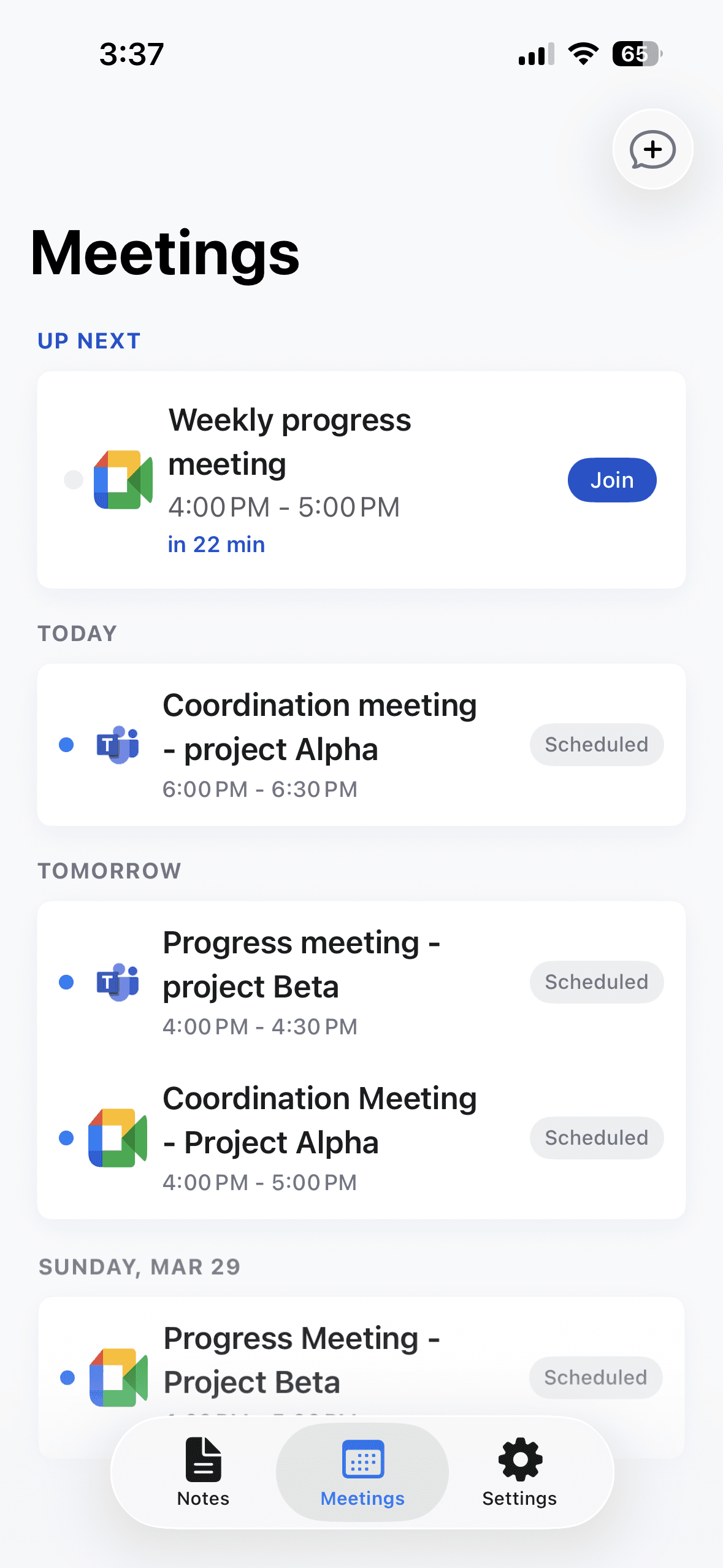
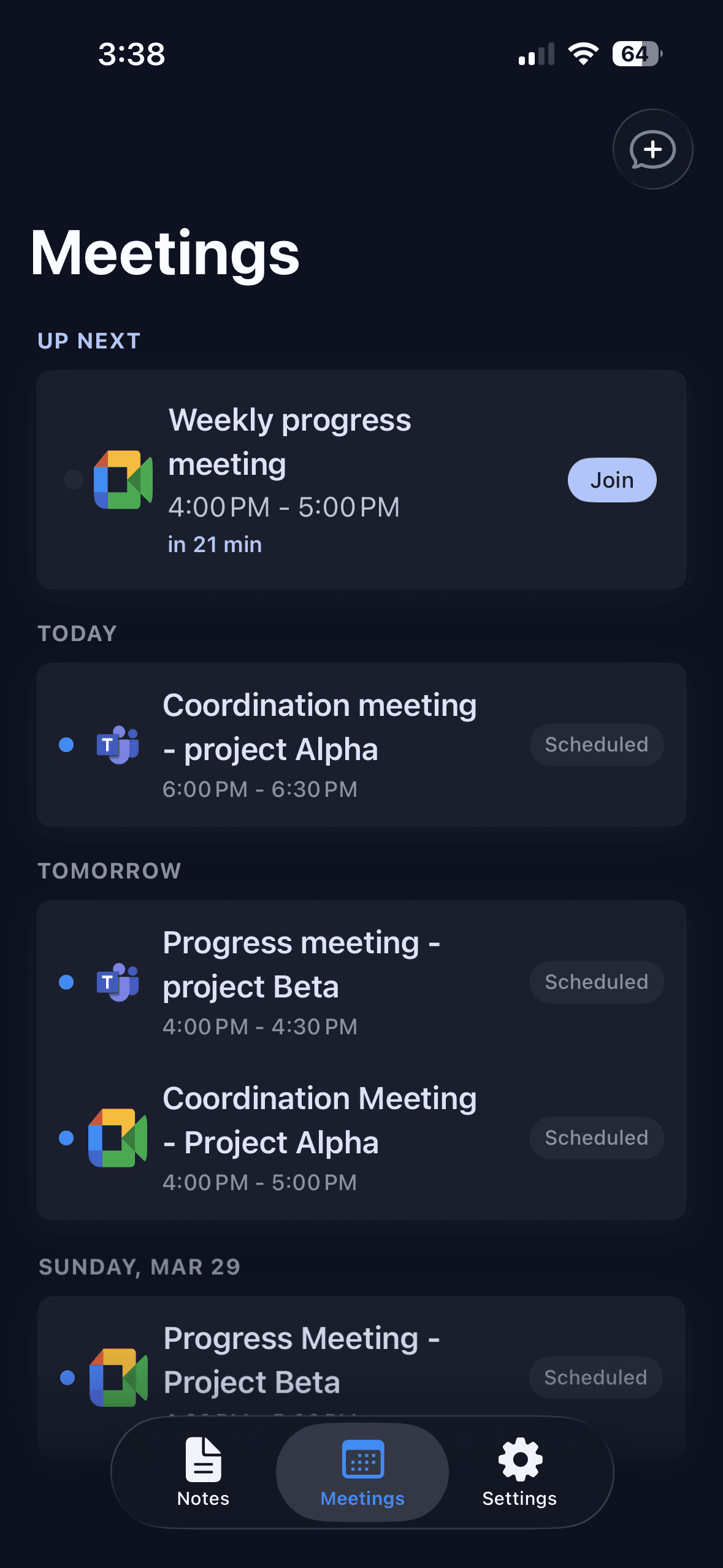
- 1Send the bot to the call. Paste the Teams meeting link in the app, or connect your Outlook or Google calendar and tap Join on the meeting. A bot joins the call as a visible guest and records. Nothing is installed in Teams. Details are on the meeting bot page.
- 2Or record the room. If you sit in a meeting room with Teams on the big screen, start a recording in the app and put the phone on the table. It keeps recording with the screen locked, for up to three hours per recording.
- 3Wait for processing. A 1-hour recording takes about 2 minutes. The note holds a transcript with speaker labels and timestamps, a summary and action items with assignees.
- 4Choose the minutes of meeting style. This gives you the formal layout. If your group has its own layout, use the custom instruction style and describe the format in your own words.
- 5Rename speakers and check the draft. Put real names on the speaker labels. Tap a transcript line to hear that moment when you check a motion or a figure.
- 6Edit and export. Fix the summary where needed, then export to PDF or Word, or copy it with formatting into your email. The guide on sharing meeting notes with your team covers the next step.
Sample minutes from a Teams meeting
The card below is an invented example. The group, names, dates and decisions are made up. It shows checked minutes for a 40-minute Teams committee meeting.
Date and time: 21 October 2026, 15:00 to 15:40. Held on Microsoft Teams.
Present: Sara (chair), Omar, Lina, Karim. Apologies: Nadia. Minutes taken by: Lina.
1. Minutes of the last meeting. Approved with no changes.
2. Venue for the December event. Omar reported two quotes. Decision: the committee chose the smaller venue because it is within budget.
3. Motion: "The committee approves a budget of 4,000 for the December event." Proposed by Omar, seconded by Karim. Result: carried, 4 in favour, 0 against.
4. Volunteers. Sara asked for six volunteers. No decision. The item returns at the next meeting.
Action 1: Omar to book the venue by 28 October.
Action 2: Lina to send the volunteer form to members by 24 October.
Next meeting: 4 November 2026, 15:00, on Teams.
Status: draft, to be approved at the next meeting.
Minutes checklist for a Teams meeting
Use this list before, during and after the call.
| When | Check | Done when |
|---|---|---|
| Before | One minute-taker is named | The chair has confirmed the name |
| Start | Everyone knows if the meeting is recorded | The chair said it before item 1 |
| Start | Attendance is written | Present, apologies and guests are listed |
| During | Each motion is written word for word | Wording, proposer and result are recorded |
| During | Each action has an owner and a date | No line says only "we should" |
| After | Names and figures are checked | Checked against the transcript or recording |
| After | The draft is sent | All members have it, marked as draft |
| Next meeting | The minutes are approved | Approval is written in the new minutes |
Problems and fixes
Online meetings bring a few problems that a room meeting does not.
| Problem | Why it happens | Fix |
|---|---|---|
| You cannot tell who is speaking | Cameras are off and voices sound alike | Ask people to say their name before a motion or a vote, and rename speakers in the transcript afterwards |
| The record button is missing in Teams | Your organisation's settings or license do not allow it for you | Ask the organiser or IT, or record on a phone in the room with everyone's consent |
| The bot stays outside the meeting | The meeting uses a lobby (a waiting area) and nobody admitted it | Ask the organiser to watch the lobby at the start and admit it like any guest |
| The bot cannot join at all | The organisation does not allow outside guests in meetings | Speak to IT about the policy. Until then, record on your phone from the room |
| A vote is unclear | People voted by voice or in a quick show of hands on camera | Ask the chair to state the result out loud, then write the numbers |
| The minutes read like a transcript | The draft followed the order of the talk | Keep one short summary per item, with the decision on its own line |
Limits and honest notes
Know these before you use Noter AI for formal minutes.
- It writes a draft. Approval still belongs to your group, and the app cannot tell you whether your rules for minutes are met.
- Attendance and votes need a person. The app works from the audio. Someone who never spoke is not in the recording, and a vote result should be written as the chair announces it.
- Your organisation's rules apply to the bot. If guests are not allowed in your Teams meetings, the bot cannot join. Then record the room on your phone.
- There is no desktop app. You send the bot from iPhone, iPad or Android, and you can read notes in a browser with the web app at app.noterai.net.
- Importing an audio file needs Premium. One plan includes everything: $5.99 per week, $9.99 per month or $69.99 per year in the US. Local prices vary.
- Telling people is your job. Laws differ by country, so read meeting recording laws by country.
Frequently asked questions
Does Microsoft Teams write meeting minutes automatically?
Teams can record and transcribe a meeting when your organisation's settings allow it, and what is available depends on your license and policies. A transcript is not minutes, so someone still has to write the formal record. Noter AI can turn a recording of the call into a minutes-style draft that a person then checks.
Who should take the minutes in a Teams meeting?
One person named before the meeting, usually the secretary or someone the chair chooses. The chair should not do it, because they run the discussion. If the minute-taker also needs to speak, a Teams recording or a Noter AI recording of the call helps.
Can I take minutes in a Teams meeting I do not organise?
Yes, you can always take minutes by hand. Recording in Teams depends on the organiser's and the organisation's settings. The Noter AI bot can join from the meeting link as a guest, but the organiser may need to admit it.
How do I record who attended a Teams meeting?
Check the list of people in the call at the start, write the apologies, and note late joins with the time. Do not rely on a recording for attendance, because Noter AI and any other recording only hear people who speak.
Can the Noter AI bot join a Teams meeting with a lobby?
Yes. If the meeting uses a lobby, the Noter AI bot waits there until the organiser or another permitted person admits it, like any guest. If your organisation blocks outside guests completely, the bot cannot join, and you can record the room on your phone instead.
How long after a Teams meeting are the minutes ready?
By hand, plan for 30 to 60 minutes of writing after a one-hour meeting. With Noter AI, a 1-hour recording is processed in about 2 minutes, and you then check the draft. Send the draft within a day.
Can I use my own minutes format?
Yes. In Noter AI you can choose the minutes of meeting style, or use the custom instruction style and describe your group's format in your own words. You can also edit the text before you export it.
Do I need permission to record a Teams meeting for minutes?
Tell everyone before you record. Laws differ by country, and your organisation may have its own rules. With Noter AI, telling attendees is your responsibility, and the bot is visible in the meeting as a guest.
Let Noter AI take your meeting notes
Record, transcribe, and summarize meetings on iPhone, iPad & Android, or send a bot to Zoom, Teams, Meet, or Webex. In 60+ languages.

On your computer? Scan with your phone to get the app.
